
Stamp Card Program
Design and publish your stamp card — name it, set rewards, and go live.
Time to design the stamp card your regulars will love!
Configure your card name, theme, rewards, and terms on one settings screen. Display changes (name, theme, terms) show up on existing cards right away. Reward structure changes apply only to cards issued after you save.
Who can use this
ownerandadmin— edit stamp card settings and activate the programmember— shop operations only; this settings screen is not available
Before you start
- You are signed in with an active brand selected.
- Your brand already has a draft or active stamp card program (created automatically with the brand).
Step-by-step
1. Open Stamp Card Settings
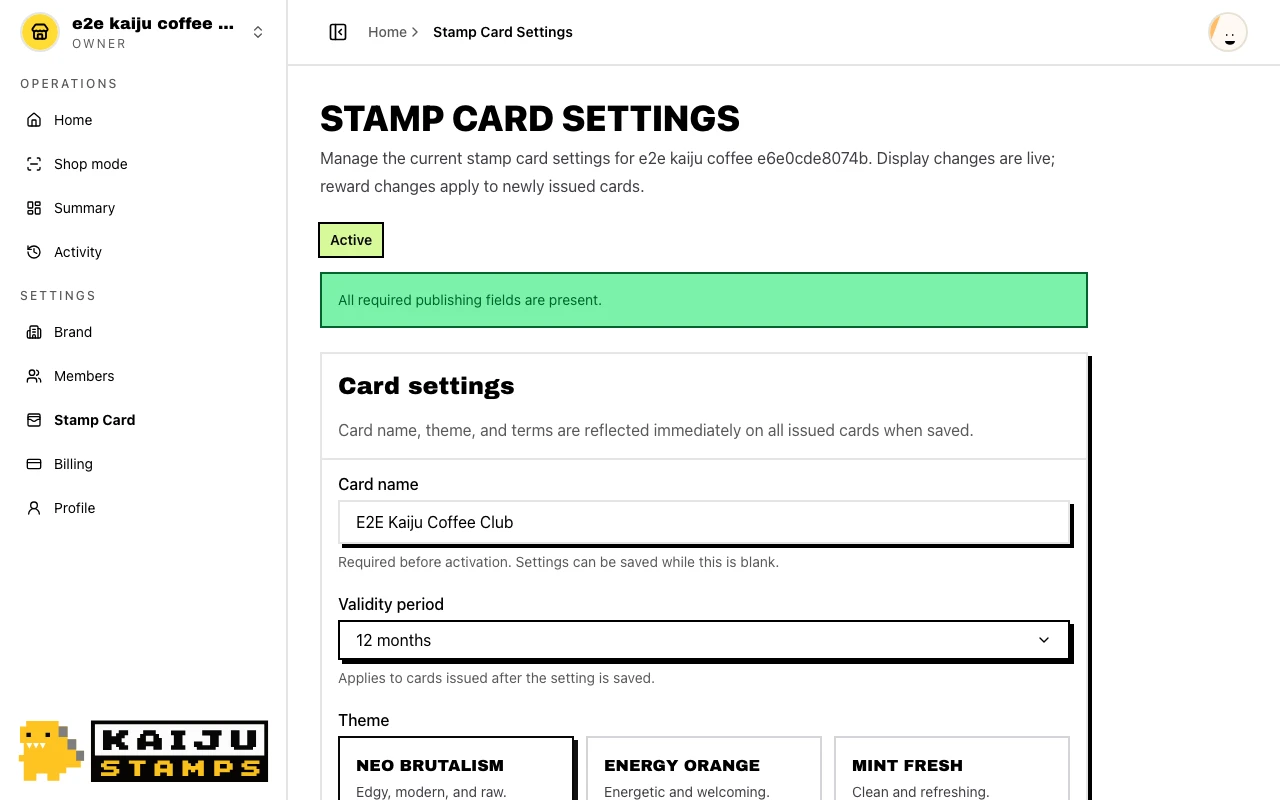
From the brand dashboard, click Stamp card settings in the sidebar (or use the shortcut on the brand overview). The page title is Stamp Card Settings.
The status badge at the top shows where you are — for example Active when the program is live. A live preview on the page mirrors what customers see on their cards.
2. Edit card settings
In the Card settings section, configure:
- Card name — required before activation; shown on every issued card
- Validity period —
3 months,6 months, or12 months(default12 months); applies to cards issued after you save - Theme — pick a color theme; required before activation
- Terms and conditions — optional staff or shop rules shown on cards
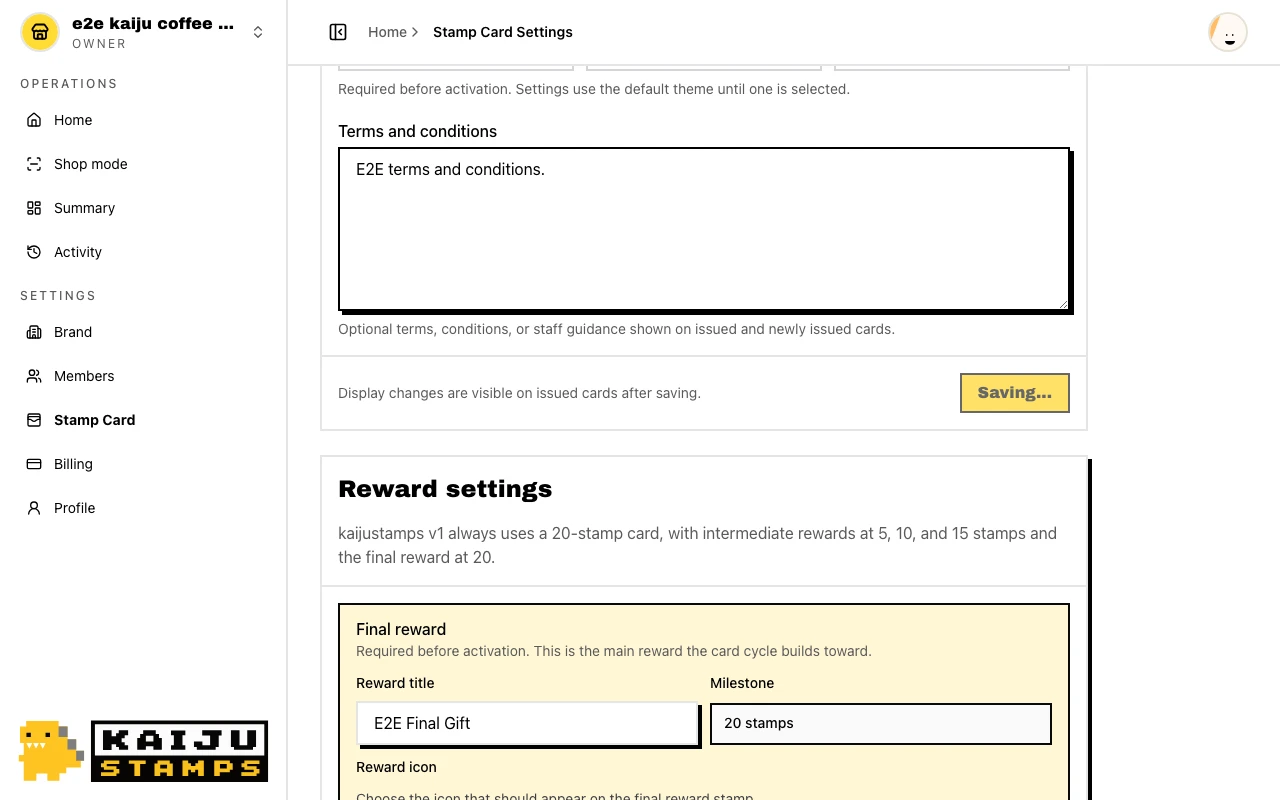
Click Save settings in the section footer. A success banner shows Card settings saved — display changes are live on issued cards immediately.
3. Edit reward settings
In the Reward settings section, kaijustamps v1 uses a fixed 20-stamp card:
- Optional intermediate rewards at 5, 10, and 15 stamps
- A required Final reward at 20 stamps
Click Save settings in this section's footer. Success shows Reward settings saved — issued cards keep their original reward structure; only newly issued cards pick up reward changes.
4. Activate your program
When all required fields are complete, click Activate at the top of the page (shown while the program is still in setup). kaijustamps validates card name, theme, and reward definitions, then marks the program Active.
Once active, you can issue customer cards and run shop operations. You can still edit settings on the same screen — no version picker needed.
5. Pause issuance (optional)
An active program can be paused to Inactive, which blocks new card issuance and new issuance QR codes. Existing cards keep collecting stamps and redeeming rewards until they expire or complete.
What success looks like
- The status badge shows Active.
- Card name, theme, and terms updates appear on existing customer cards after Save settings.
- New customers can receive cards from Card Issuance.
Tips / Common issues
- Two save buttons. Card settings and reward settings save independently — check the footer of the section you edited.
- Display vs. rewards. Card name, theme, and terms are live on all cards. Reward thresholds and titles apply only to future issuances.
- Activate before issuing. Draft or inactive programs block card issuance until you activate.
- Members can't edit. Counter staff use shop mode only — assign
memberfor issuance and stamps, not settings. - Next step. Program active? Head to Card Issuance to hand out the first card.