
Team Members
Invite teammates with a shareable link — owners and admins choose who can manage settings vs. run the counter.
Running a shop is a team sport! Invite staff to help with card issuance, stamps, and rewards.
kaijustamps uses shareable invite links — no automatic email from us. You create a link, copy or share it, and your teammate signs in with Google or Apple to join.
Who can use this
ownerandadmin— create invite links, change roles, remove members, and transfer ownershipmember— shop operations only; the Members screen is not available- Invited users — anyone with the link who signs in (or signs up) with the correct account
Roles
| Role | Can do |
|---|---|
owner | Everything, including ownership transfer. At least one owner must remain. |
admin | Invite members, manage roles, billing, and stamp card settings. Cannot transfer ownership. |
member | Shop mode only: issuance, stamp accrual, and reward redemption at the counter. |
Step-by-step
1. Open Members
From the brand overview, click Manage members or choose Members in the sidebar. You'll see the current team list and the Create invite link form.
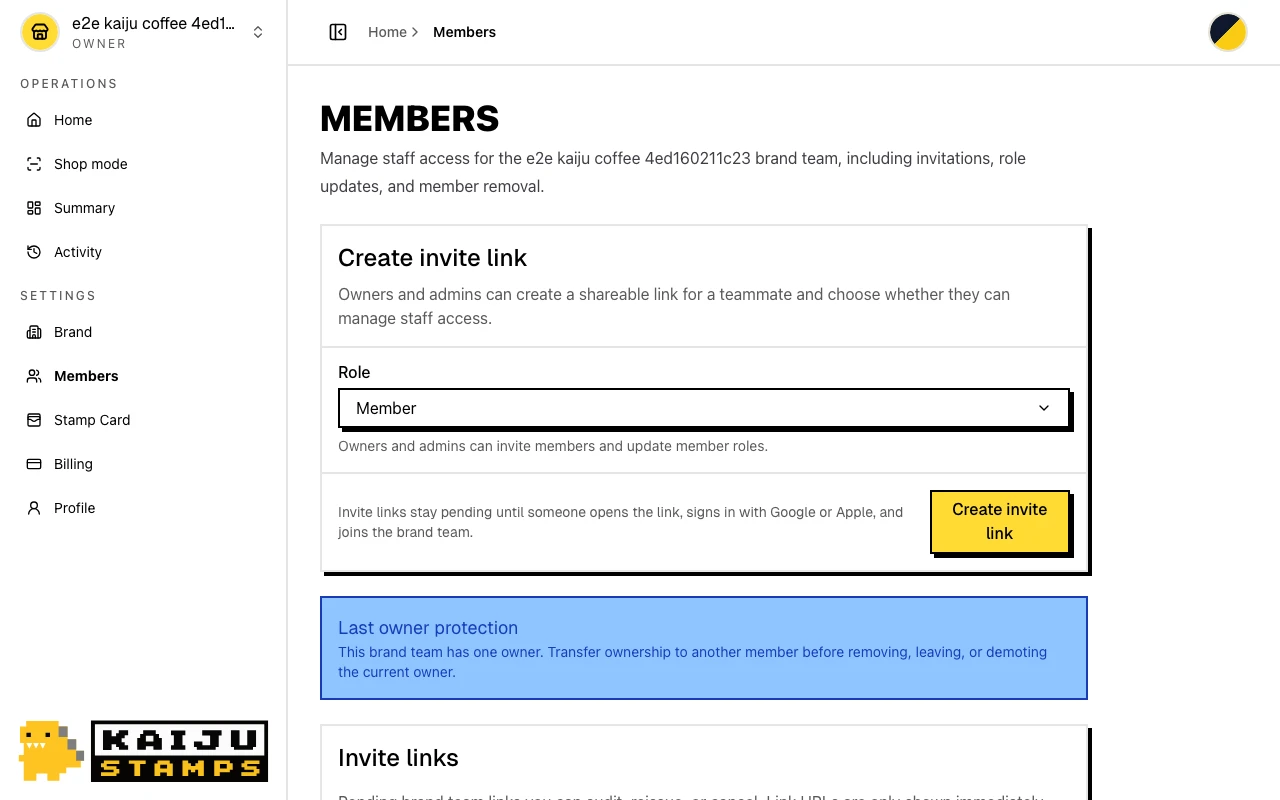
2. Choose a role and create a link
Under Create invite link, pick a Role:
- Member — counter staff for daily shop operations
- Admin — teammates who also need billing and stamp card settings
Click Create invite link. A success banner shows Invitation link ready with the message Invite link created.
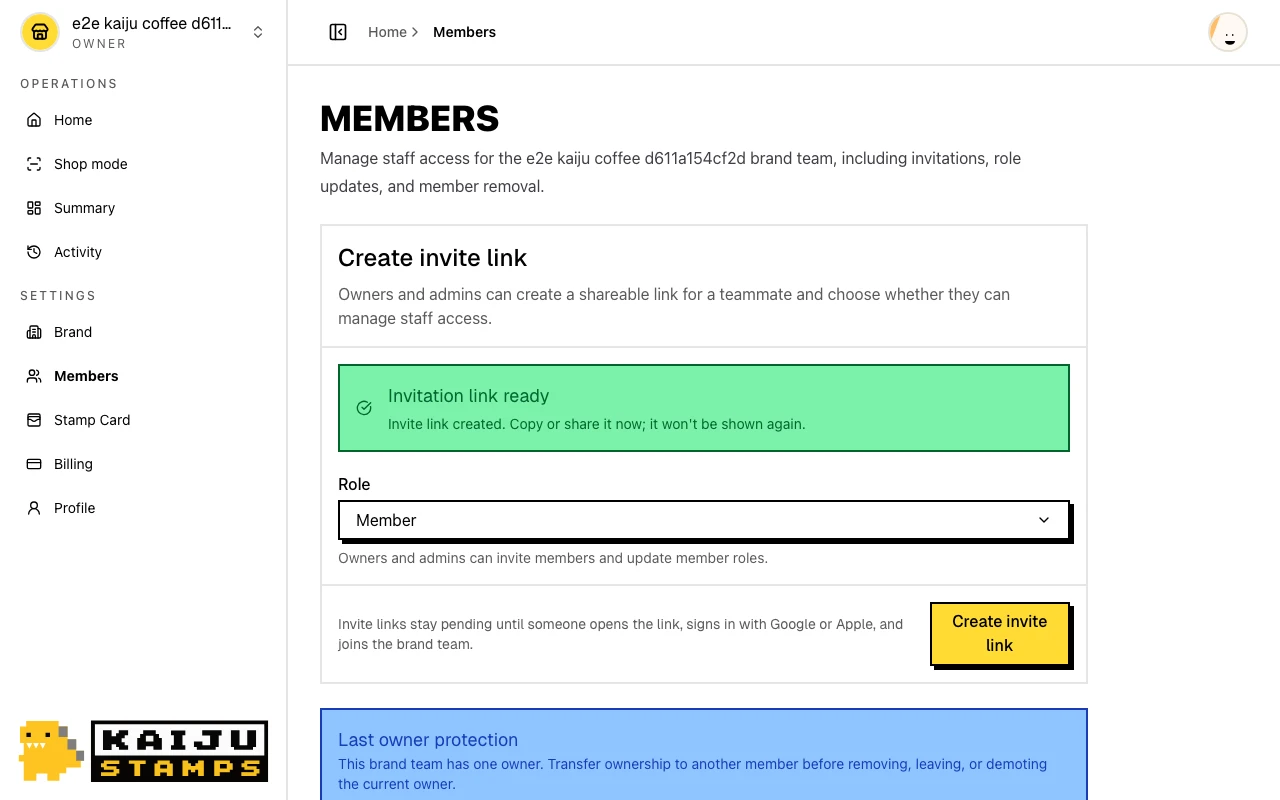
3. Copy or share the link
The invite URL is shown once. Click Copy link or use the share action to send it to your teammate. Links expire after a set period — reissue from the pending invites list if needed.
4. Teammate accepts the invite
Your teammate opens the link, signs in (or signs up) with Google or Apple, and joins the brand with the role you selected. They're routed into the merchant console with that brand set as active.
5. Manage existing members
From the members table you can:
- Set as admin / Set as member — change roles between
adminandmember - Transfer ownership —
owneronly; required before the current owner can leave or be removed - Remove non-owner members when they no longer need access
Pending invites appear in the list until they're accepted, canceled, or expired.
What success looks like
- You created an invite link and shared it with a teammate.
- The new member appears in the team list with the correct role.
- Pending invite count on the brand overview updates accordingly.
Tips / Common issues
- Links are one-time display. Copy or share immediately — you won't see the full URL again after leaving the page.
- Last owner protection. You can't remove or demote the only
owner. Use Transfer ownership first. - Members can't invite. If you only need counter help, assign the
memberrole — they won't access this screen. - Wrong account? Invite acceptance requires signing in with the account that should join. Mismatches are blocked with a clear message.
- Next step. With your team in place, design your card in Stamp Card Program.