
Card Issuance
Show a QR or link so customers can save their stamp card — right at the counter.
This is the fun part — handing a customer their very own stamp card!
From the shop console, a short-lived, one-time QR code (or URL) is prepared automatically for each new customer. They scan it, pick Apple Wallet, Google Wallet, or the browser, and they're ready to collect stamps. No customer account required.
Who can use this
- Merchant
owner,admin, ormembersigned in to the active organization - Customers scanning the QR you show them — no merchant login needed on their side
Before you start
- You are signed in and your active organization has an active stamp card program.
- Your organization has billing access for card issuance.
If the program is still a draft or inactive, issuance stays blocked until you publish stamp card settings.
Step-by-step
1. Open the issuance screen
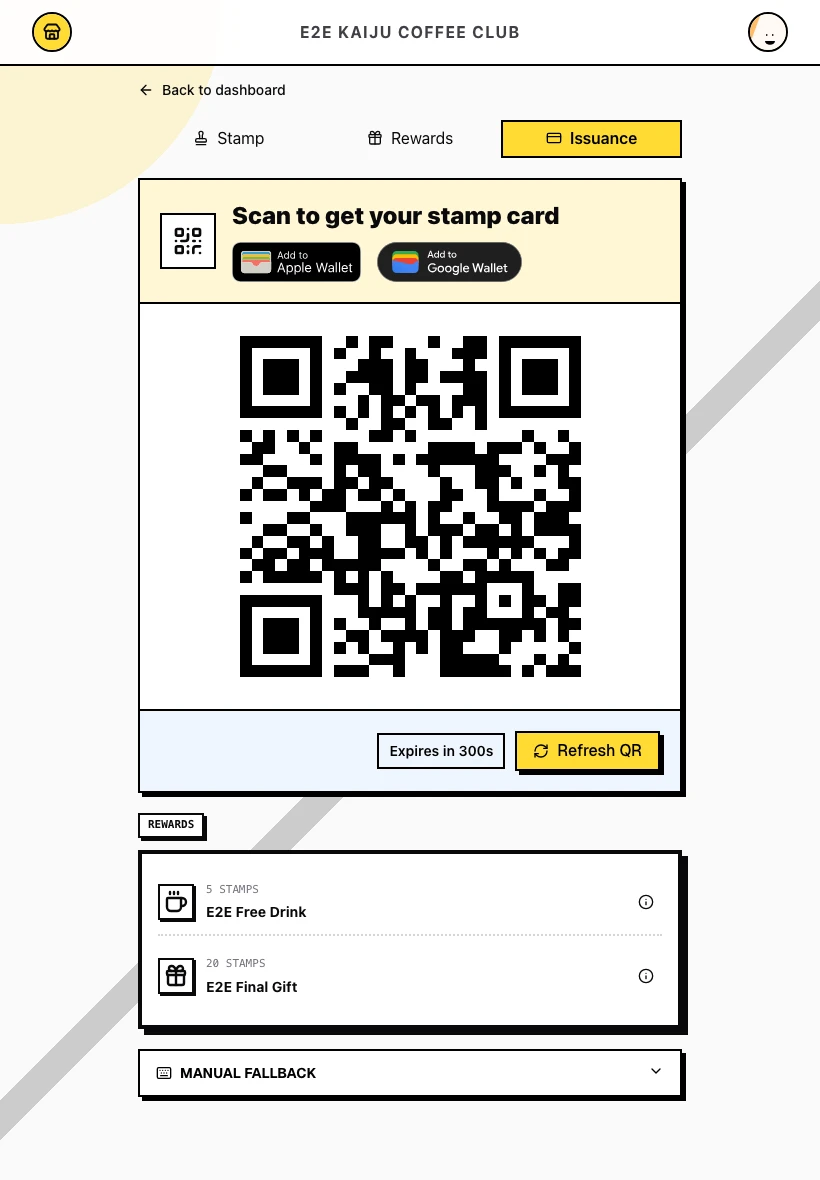
In the shop console, navigate to Issuance. The Issuance tab is selected and a one-time QR code is ready immediately — no need to click Generate QR first. The screen also shows your card branding, wallet action buttons, and a Refresh QR control for the next customer.
2. Show the one-time QR
When a new customer is ready, show the QR on your screen. The QR is valid for a short time and works only once — click Refresh QR before serving the next customer.
The customer opens the public issuance page from that QR.
3. What the customer sees
On the public page the customer sees SAVE THIS CARD with:
- Add to Apple Wallet
- Add to Google Wallet
- Use in browser (a lower-priority text link for customers who prefer not to use a wallet)
No kaijustamps account or sign-up is required.
After a successful wallet or browser issuance, the customer has an active card tied to your organization. Browser issuance opens the card page directly and prompts them to Save this page for easy return visits.
4. When issuance is blocked
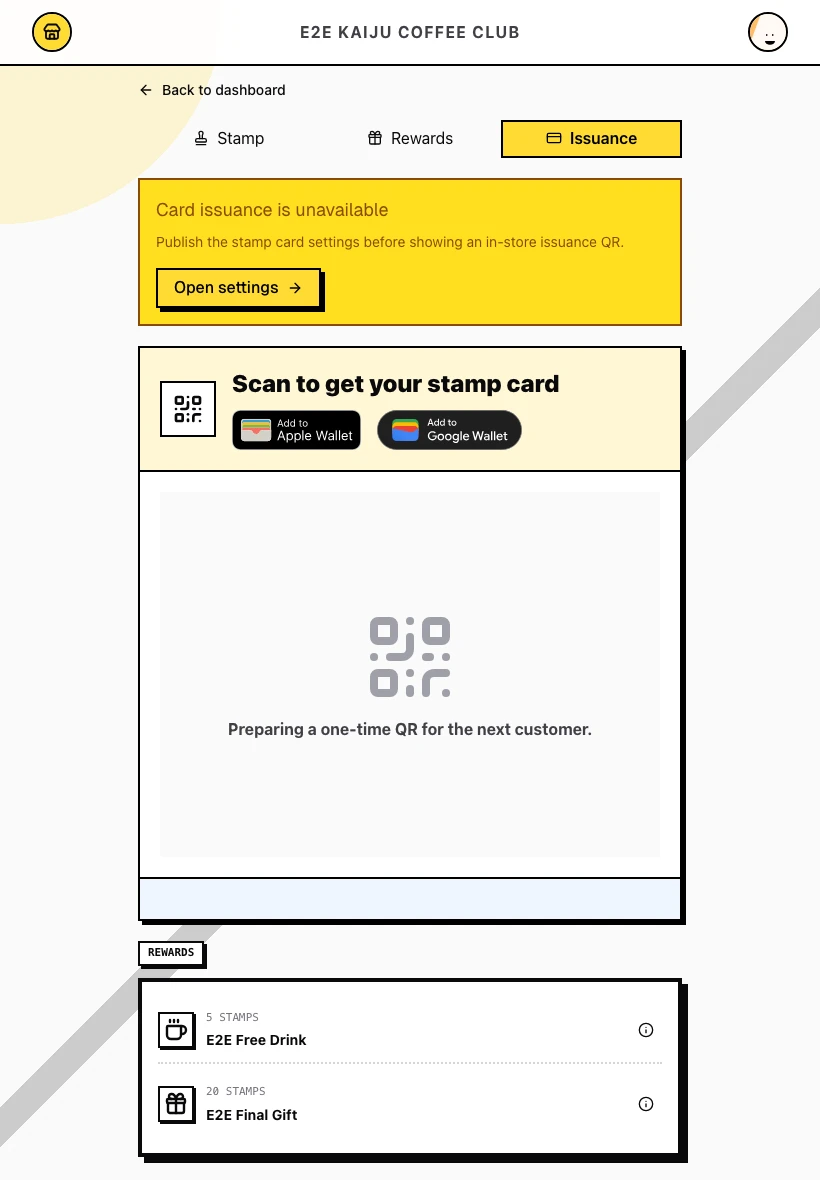
If your stamp card program is not yet published, the screen shows Card issuance is unavailable with the message Publish the stamp card settings before showing an in-store issuance QR. Click Open settings → to activate your program first.
What success looks like
- The issuance screen showed a one-time QR for a new customer.
- The customer saved the card to a wallet or the browser without creating an account.
- The used QR cannot be scanned again — click Refresh QR for the next customer.
Tips / Common issues
- One QR per new customer. Each QR is short-lived and single-use. Don't print a fixed QR for the counter.
- Returning customers use their wallet card. They should open their existing card for stamp accrual — not scan a new issuance QR.
- Publish before issuing. Draft or inactive programs block both the merchant screen and the public issuance page.
- Billing matters. Issuance requires active billing access for your organization.
- Next steps. Once a customer has a card, head to Stamp Accrual to add stamps on return visits.