
Brand & Organization
Create your brand, switch between shops, and find the settings that power your stamp card program.
Your brand is where the magic happens — stamp card settings, billing, members, and shop operations all live here.
In kaijustamps, a brand is your organization. One merchant account can own or join multiple brands. Everything you do in the console is scoped to whichever brand is currently active.
Who can use this
- Any signed-in merchant can create a new brand and become its
owner ownerandadmincan open brand settings, billing, and member management from the overviewmembercan switch brands but only accesses shop operations — not dashboard settings
Step-by-step
1. Create your first brand
After sign-up, if you don't belong to any brand yet, kaijustamps sends you to brand creation. Enter a brand name, optionally upload a square icon, and click Create brand.
A draft stamp card program is created automatically — you'll publish it later in Stamp Card Program.
2. Follow the setup guide
From the sidebar, open your brand home (/dashboard/brands/[your-brand-id]). The home page shows your role, member count, and Pending invites.
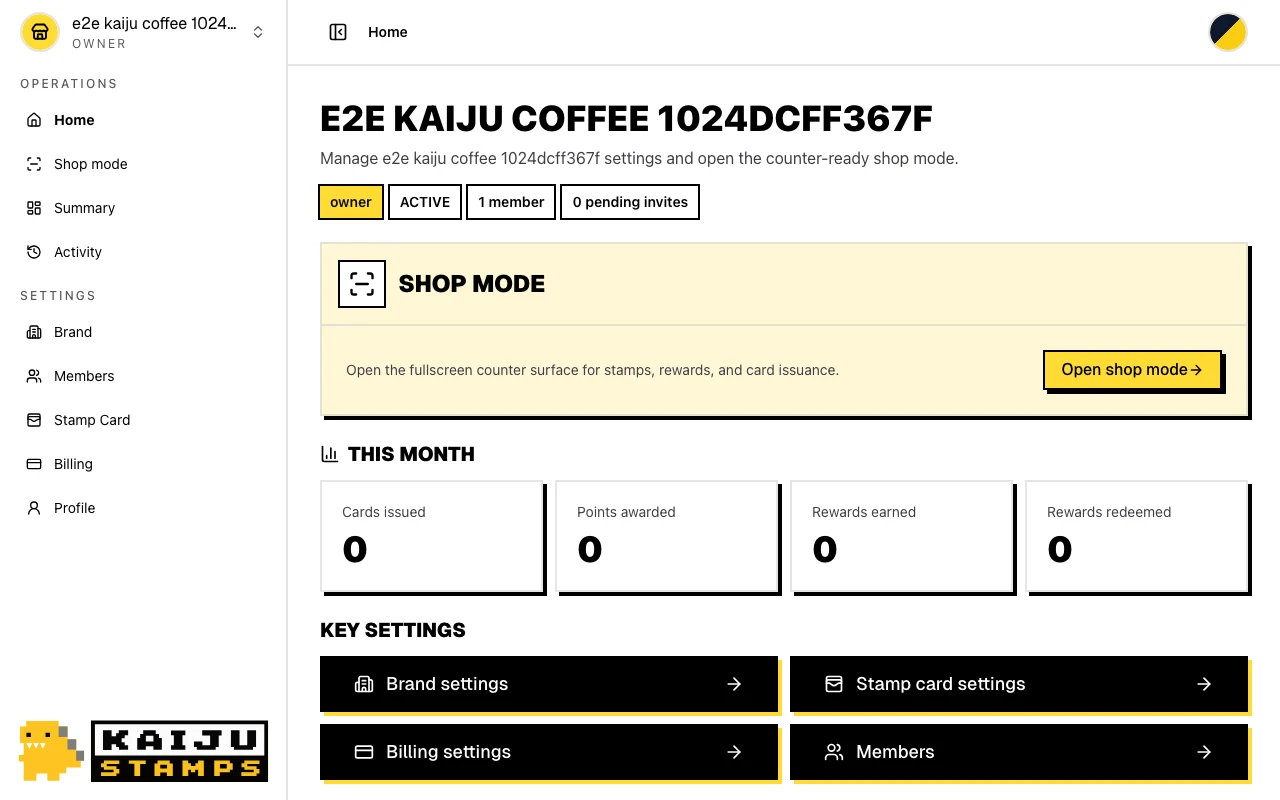
If setup is not finished, owner and admin users also see a two-step setup guide:
- Publish your stamp card — choose the design, stamp goal, and rewards, then publish the card.
- Start billing — start or reconnect the subscription for the brand.
Completed steps show a check mark. The next unfinished step expands with a button that opens the correct settings page. The guide disappears after both steps are complete. Staff with the member role do not see this management guide.
The sidebar also lists Members, Stamp Card, and Billing for quick navigation.
3. Update brand name and icon
Open Brand settings from the home page or sidebar. Change the name or upload a new square icon (a cropper helps you frame it). Save to update what your team sees across kaijustamps.
4. Switch between brands
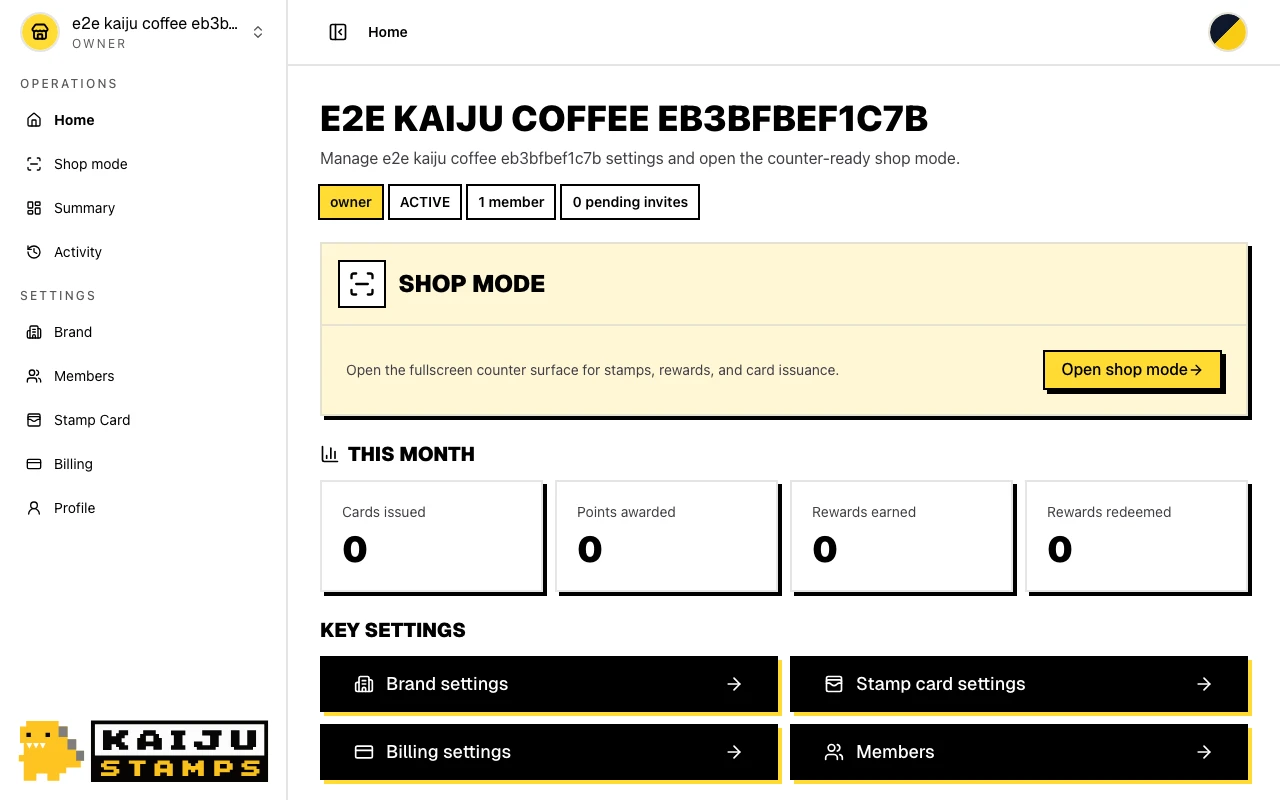
If you belong to more than one brand, open the brand switcher in the shell header. Select a brand and click Set active brand. All dashboard and shop screens update to the newly selected brand.
5. Leave a brand team
Need to step away from a brand? On the overview page, click Leave brand team. If you're the last owner, transfer ownership first — see Team Members.
What success looks like
- You created a brand and landed on its overview as
owner. - The setup guide shows which launch task is next and links to the required settings.
- Pending invites and Members counts reflect your current team.
- Switching brands updates every org-scoped screen to the selected brand.
Tips / Common issues
- Keep creation lightweight. Brand setup only asks for a name and optional icon — billing and stamp card design come next.
- Active brand is always visible. Check the brand switcher in the header if you're unsure which shop you're managing.
- Members see shop mode. Staff with the
memberrole won't see billing or stamp card settings — that's by design. - Next step. Ready to build your team? Go to Team Members.