
Reward Operations
Redeem rewards at the counter when a customer is ready to cash in.
Someone earned a reward — yay! Here's how staff confirm and redeem it at the shop.
The customer shows the same Wallet QR they use for stamps. You look up their card, select the reward they're using, and confirm redemption — one time only, no double-dipping.
Who can use this
- Merchant
owner,admin, ormembersigned in to the active organization - Customers presenting their wallet card QR from the card page or Rewards tab
Before you start
- You are signed in with shop mode open for your brand.
- Your brand has an active stamp card program and billing that allows shop operations.
- The customer has at least one earned and unused reward on their card.
Step-by-step
1. Open reward operations
In the shop console, go to Rewards (/shop/brands/[organizationId]/rewards). The Scan wallet QR camera is ready for redemption lookups.
2. Look up the customer's card
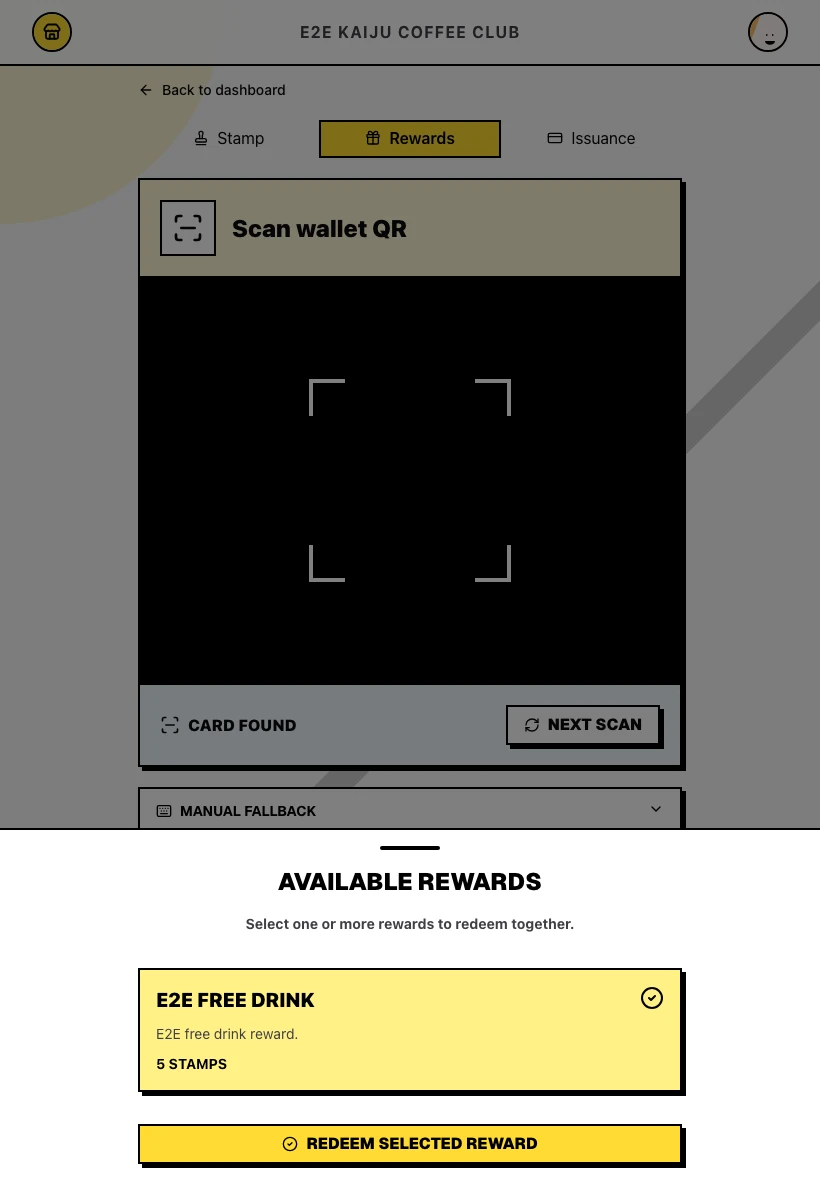
Scan the customer's wallet QR. On success, a drawer opens with Available rewards. Tap the reward the customer wants to use (you can select more than one when applicable).
3. Redeem the selected reward
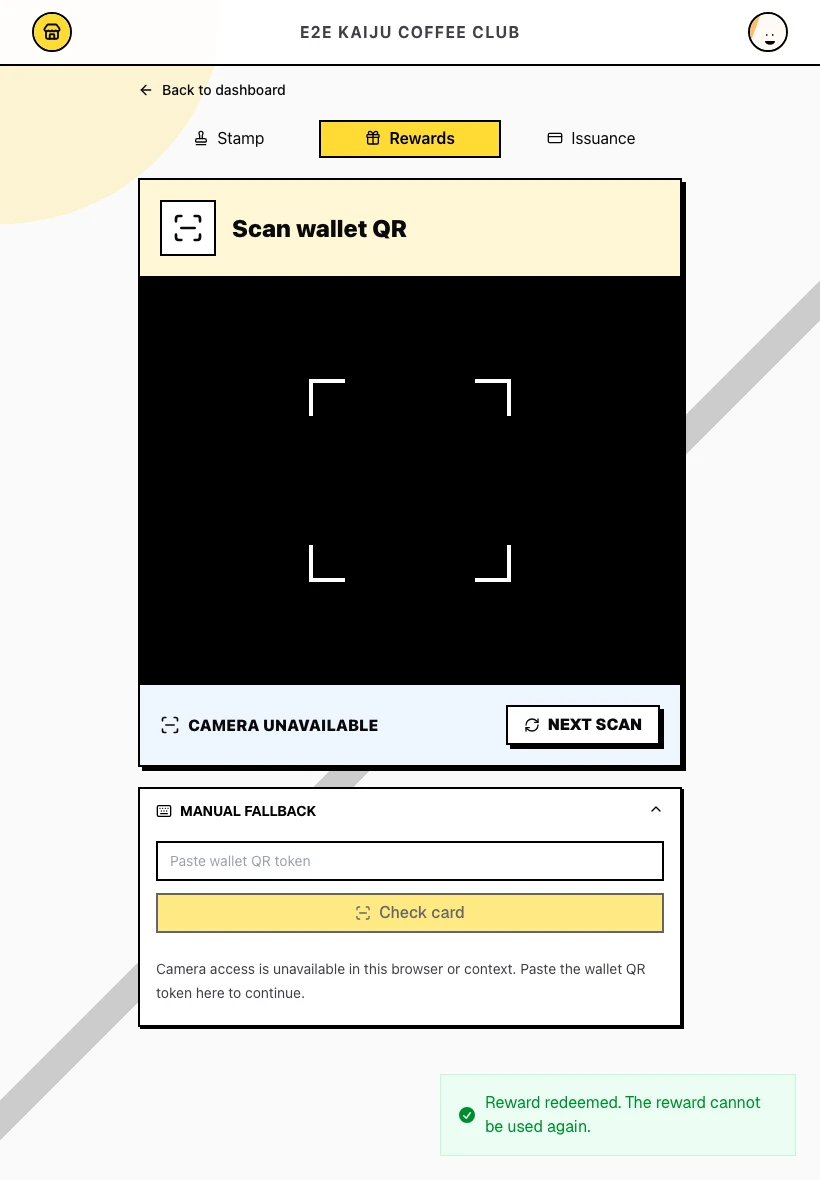
With a reward selected, click Redeem selected reward. The drawer closes, a confirmation appears, and the scanner returns to Scanning for the next customer.
4. When no rewards are available
If every earned reward was already used, a message appears:
This card has no available rewards.
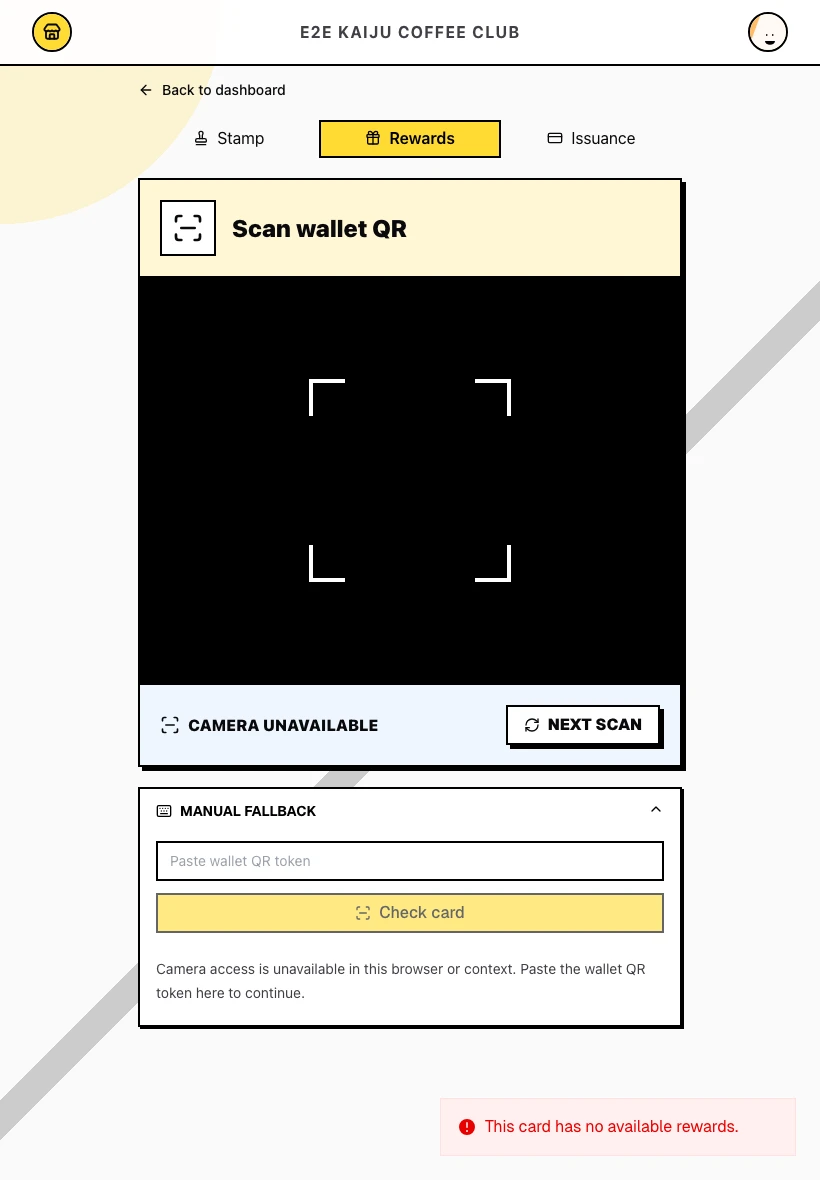
No reward state changes — ask the customer to keep collecting stamps or verify they opened the correct card. The scanner is ready for the next customer.
5. Invalid lookups
A bad or foreign token shows Scan a kaijustamps wallet card QR for this brand. No card or reward data is exposed for wrong-brand scans. Click Next scan to try again.
What success looks like
- You confirmed the correct card and reward before redeeming.
- The reward moved to Redeemed and cannot be used again.
- Intermediate redemptions do not reset card progress; final redemptions complete that card generation.
- The scanner is ready for the next customer without tapping Next scan.
Tips / Common issues
- Select, then confirm. Scanning alone does not redeem — you must pick a reward and click Redeem selected reward.
- Same QR as stamps. Wallet QR is shared between stamp accrual and rewards; only the screen purpose differs.
- One-time use. After redemption, scanning again shows no available rewards for that reward.
- Billing matters. Without a trialing or active subscription, the reward scanner is blocked — use Open billing if you have management access.
- Final reward care. Redeem the final reward only when the customer is ready — it completes that card cycle.
- Next step. Need to add more stamps on a new card generation? Return to Stamp Accrual.