
Stamp Accrual
Add stamps when a customer visits — scan or paste, confirm, done!
Every visit counts! This guide shows shop staff how to add stamps to a customer's card.
When a regular opens their wallet card and shows the Wallet QR, scan it (or paste the token) and add 1–20 stamps in one go. Hit a reward threshold and kaijustamps celebrates with you.
Who can use this
- Merchant
owner,admin, ormembersigned in to the active organization - Customers presenting their wallet card QR — no merchant login needed on their side
Before you start
- You are signed in with shop mode open for your brand.
- Your brand has an active stamp card program and billing that allows shop operations.
- The customer opens their existing wallet or browser card — not a new issuance QR.
Step-by-step
1. Open the stamp scanner
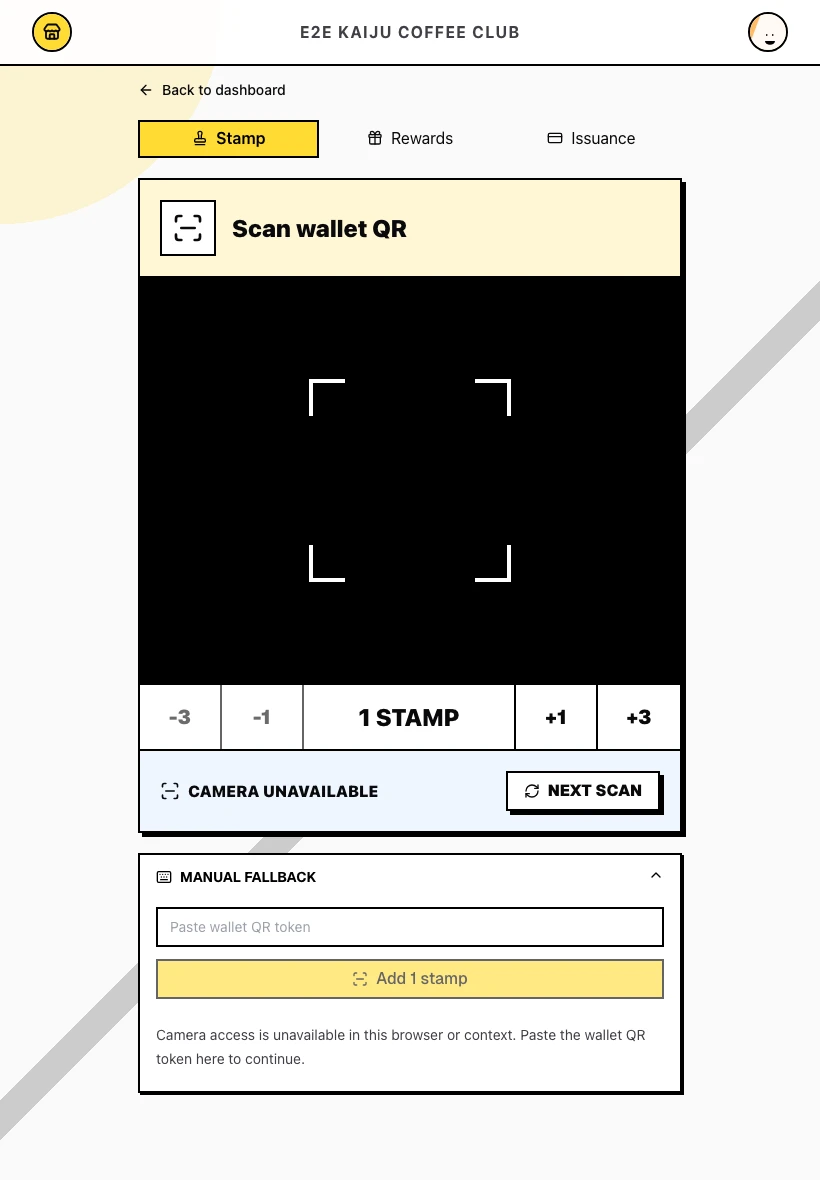
In the shop console, go to Stamp accrual (/shop/brands/[organizationId]/stamp-accrual). The Scan wallet QR camera view is ready, with a stamp amount selector below it (default 1 stamp).
Use the -3, -1, +1, and +3 controls (labeled Adjust stamp amount by …) to pick how many stamps to add — up to 20 per scan.
2. Scan the wallet QR
Point the camera at the customer's Wallet QR on their card. The scanner reads it automatically.
Returning customers use the same wallet card each visit — do not issue a new card.
3. Confirm success in the drawer
On success, a drawer opens from the bottom with Added N stamps, a stamp grid matching the wallet card completed view, and Earned rewards listing every unused reward on the customer's wallet pass. Rewards earned in this scan are marked New; earlier unused rewards stay listed with Earned and unused.
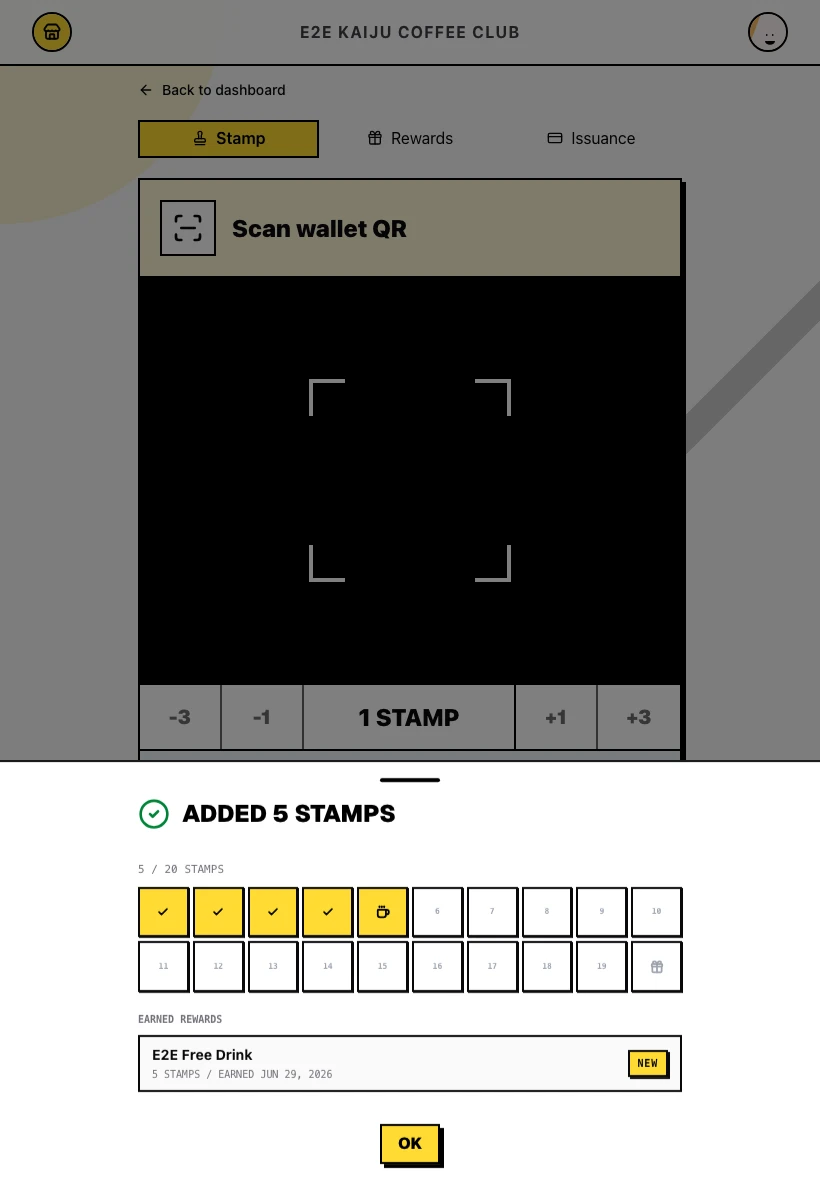
Tap OK to close the drawer and return to scanning for the next customer. The scanner latches after a successful read so the same QR is not applied twice.
4. When a scan fails
Invalid or wrong-brand cards show an error without changing card progress. For example:
This wallet card is not valid for this brand.
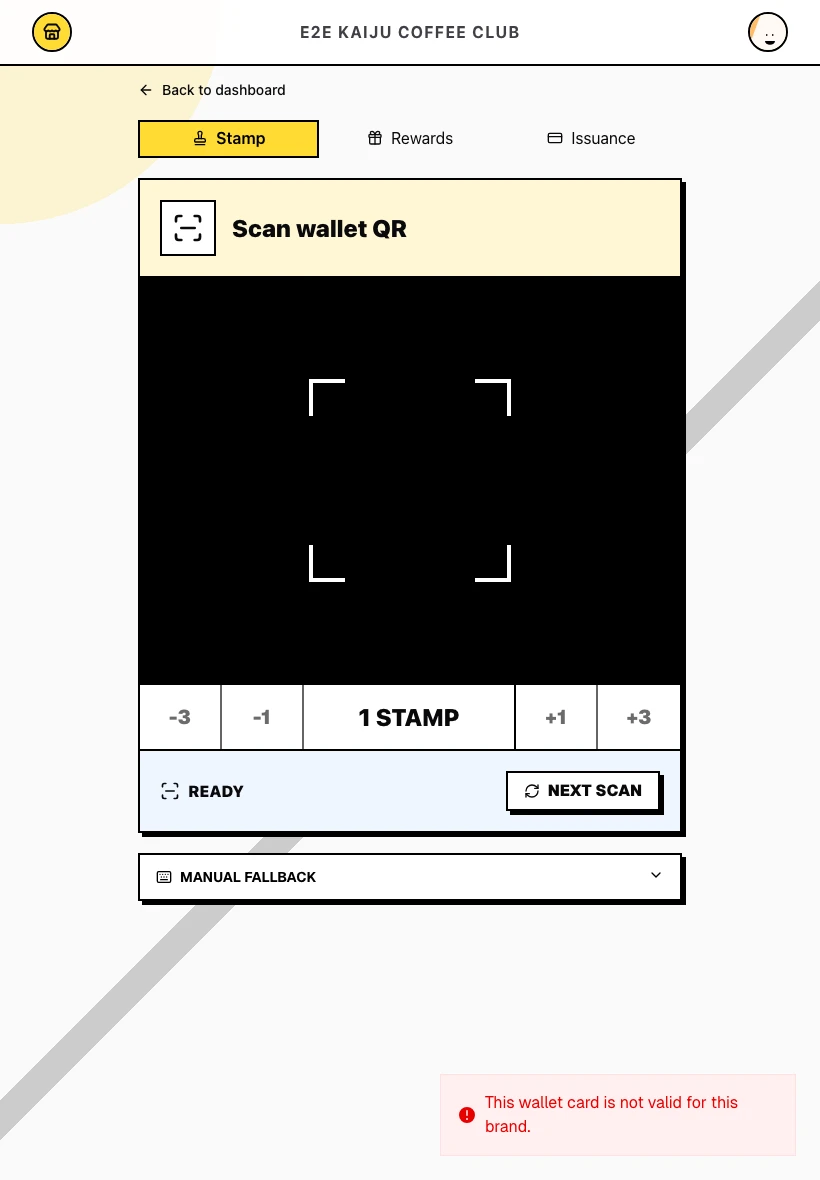
Use Next scan, then try the correct customer's card.
What success looks like
- Stamps were added to the correct active card for your brand.
- Progress updated immediately in the success drawer.
- Any newly earned rewards are available for redemption on the customer's card and in Reward Operations.
Tips / Common issues
- One scan per visit. After success, tap OK on the drawer before scanning again — the UI prevents duplicate stamps from the same QR frame.
- Pick the amount first. Set stamp count before scanning so multi-stamp visits (for example Add 5 stamps) apply in one action.
- Wrong QR? Issuance QRs are for new customers only. Returning visitors must open their saved wallet or browser card.
- Billing matters. Without a trialing or active subscription, the scanner is blocked — owners and admins can use Open billing from the warning.
- Card full? A card that reached the final reward and is awaiting redemption cannot receive more stamps on that generation.
- Next step. Customer earned a reward? Switch to Reward Operations when they're ready to redeem.