
Sign In & Account
Sign in to your merchant account with Google or Apple, then keep your profile up to date.
Ready to jump in? Let's get you signed in.
Your merchant account is separate from customer wallet cards. Sign in once with Google or Apple, manage your display name, and you're ready to set up your brand.
Who can use this
- Signed-out merchants opening
/sign-inor/sign-upto create or access a merchant account - Signed-in merchants updating their personal profile or sign-in methods
Step-by-step
1. Open the sign-in page
Go to Login (/sign-in). Choose Login with Google or Login with Apple — use the same provider you picked when you first signed up.
If you're already signed in, opening /sign-in or /sign-up takes you straight back to your merchant dashboard.
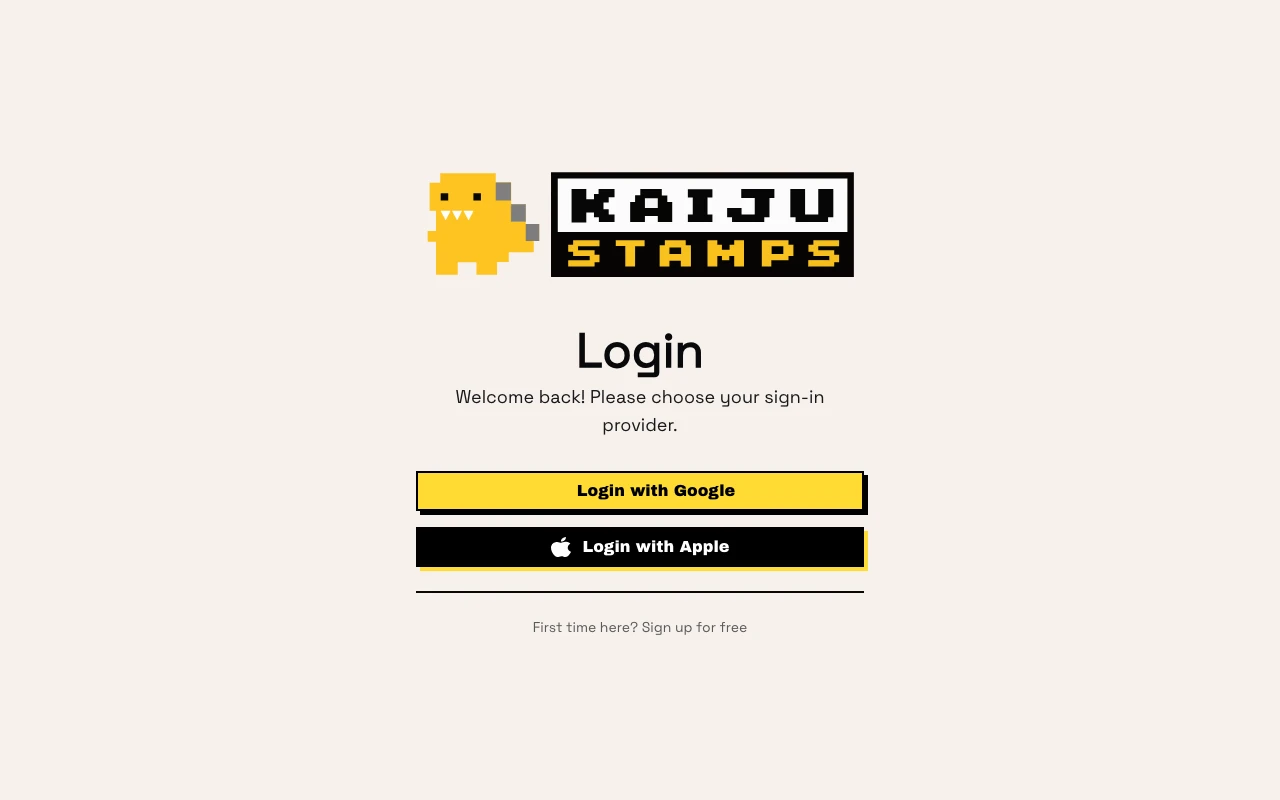
New here? Follow First time here? Sign up for free to open Sign up.
2. Create your merchant account
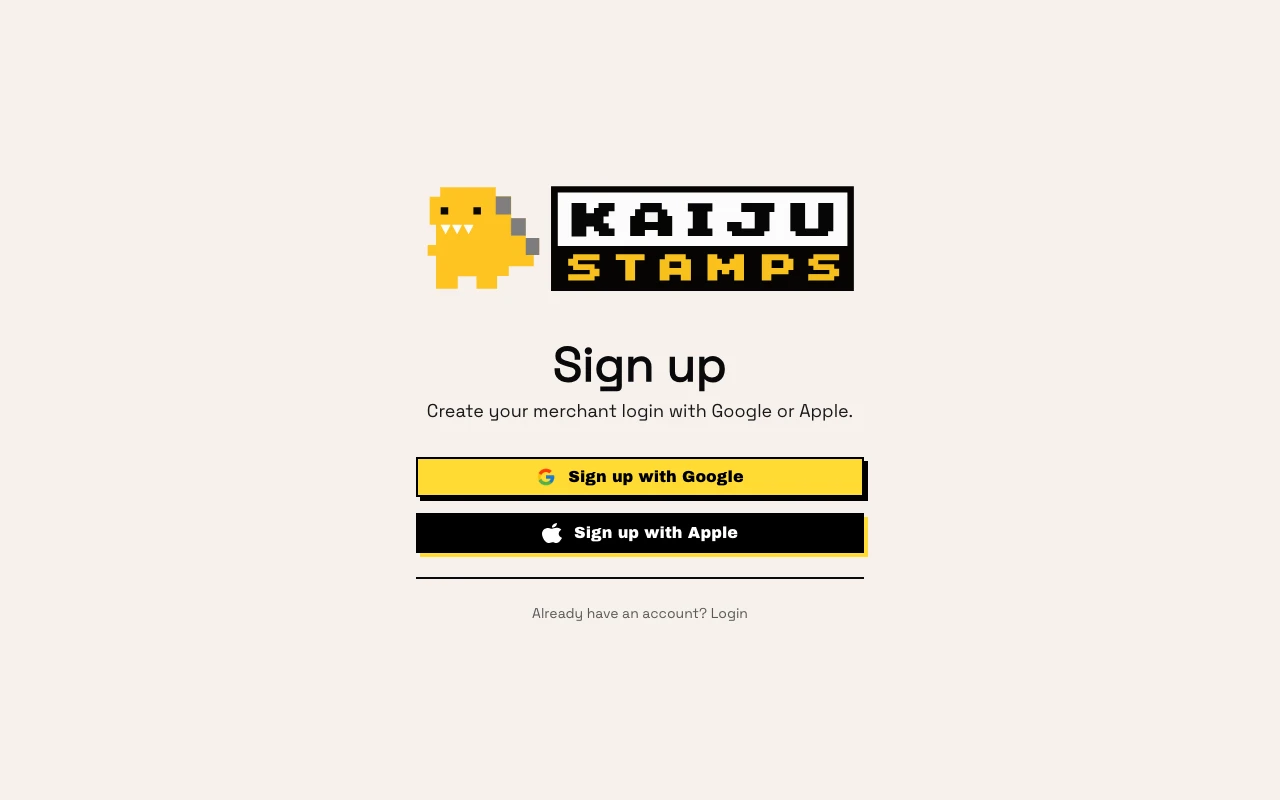
On Sign up, choose Sign up with Google or Sign up with Apple. No password required — your provider handles authentication.
3. Land in the merchant console
After a successful sign-in, kaijustamps routes you based on your brands:
- No brands yet → brand creation
- One brand → that brand's dashboard
- Multiple brands → brand selector (pick one and click Set active brand)
Shop staff with the member role go straight to Shop mode instead of the full dashboard.
4. Update your profile
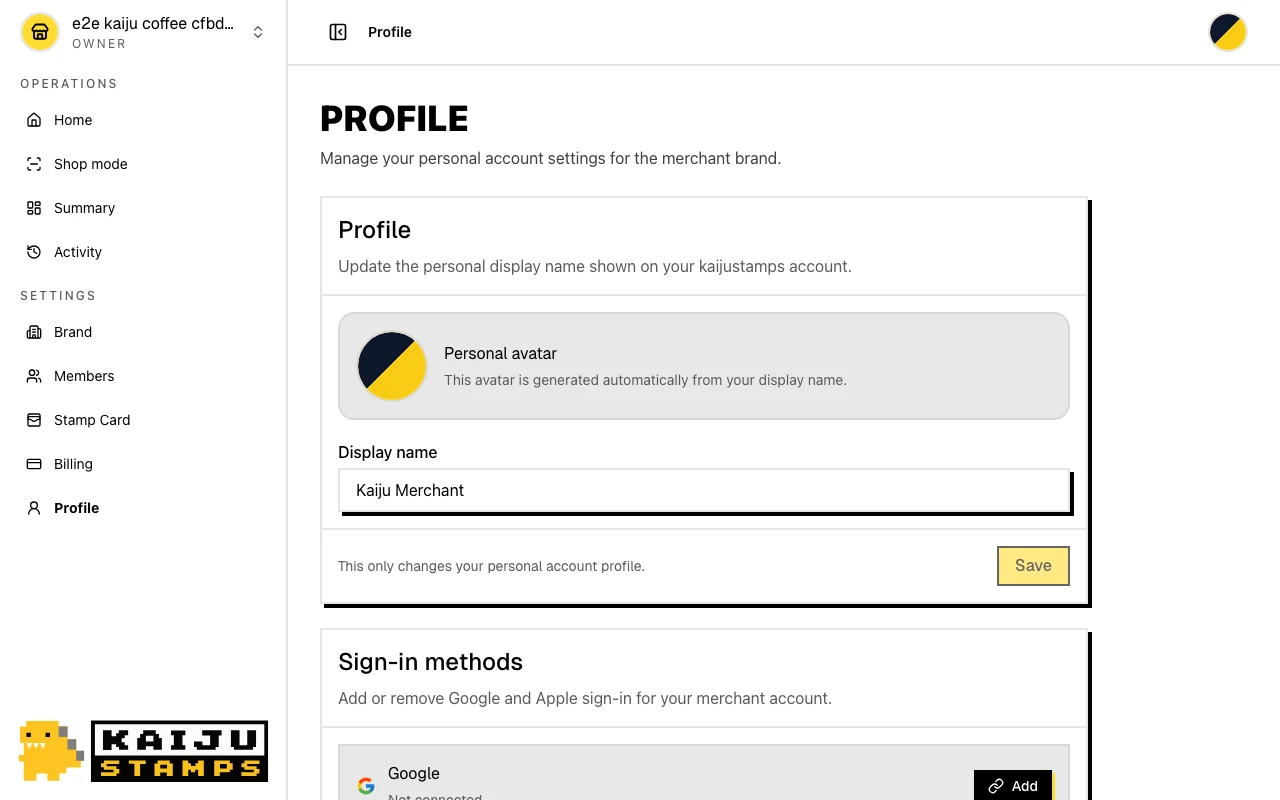
Open Profile from the account menu (/dashboard/account/profile). The same menu also includes Docs and Support; Docs opens the manuals in a new tab, and Support opens a drawer without leaving the dashboard. Update Display name and click Save. This only changes your personal account — not your brand name.
5. Manage sign-in methods
On the same profile page, find Sign-in methods. Add or remove Google and Apple sign-in for your account. You must keep at least one method linked — the last one cannot be removed.
6. Sign out
When you're done, use Sign out from the account menu. You'll return to Login and need to sign in again to access the merchant console.
Need help?
Use Support from the account menu to contact kaijustamps support. Your account email is filled in automatically, you can choose an inquiry type such as refund request, bug report, or feature request, and you can attach one screenshot. We reply within two business days.
What success looks like
- You're signed in and can reach your brand dashboard or shop operations.
- Your Display name is saved on the profile page.
- Sign out ends your session until you sign in again.
Tips / Common issues
- Use the same provider. If you originally signed up with Google, sign in with Google — switching providers without linking first shows Use your original sign-in method.
- No customer login here. Wallet cards don't use merchant accounts. Customers never need to sign up on this screen.
- Profile ≠ brand. Display name is personal; your shop's public name lives in Brand & Organization.
- Check docs first. The account menu's Docs link opens the merchant guides, and the support drawer links to the most common setup and billing docs.
- Next step. First time in? Head to Brand & Organization to create your brand.