
Standard Shop Card Journey
Follow one card from issuance to reward redemption — the full happy path with Apple Wallet, step by step.
This is the story of one stamp card from "brand new" to "reward redeemed" — and it ends with a fresh pass ready for the next round.
We'll walk through the whole journey: a staff member issues a card, a customer saves it to Apple Wallet, stamps add up, a reward unlocks, staff redeem it, and the pass rolls over when the card is complete. No customer account required.
Who can use this
- Shop staff (
owner,admin, ormember) with access to card issuance, stamp accrual, and reward operations - Customers receiving a card via the public issuance page and saving it to Apple Wallet or Google Wallet — no login needed
Before you start
- Your organization has billing access and an active stamp card program with at least one intermediate and one final reward.
- Shop staff are signed in and can access shop operations for the organization.
- The customer has an iPhone with Apple Wallet (or an Android device with Google Wallet for the same flow).
Step-by-step
1. Open the issuance screen
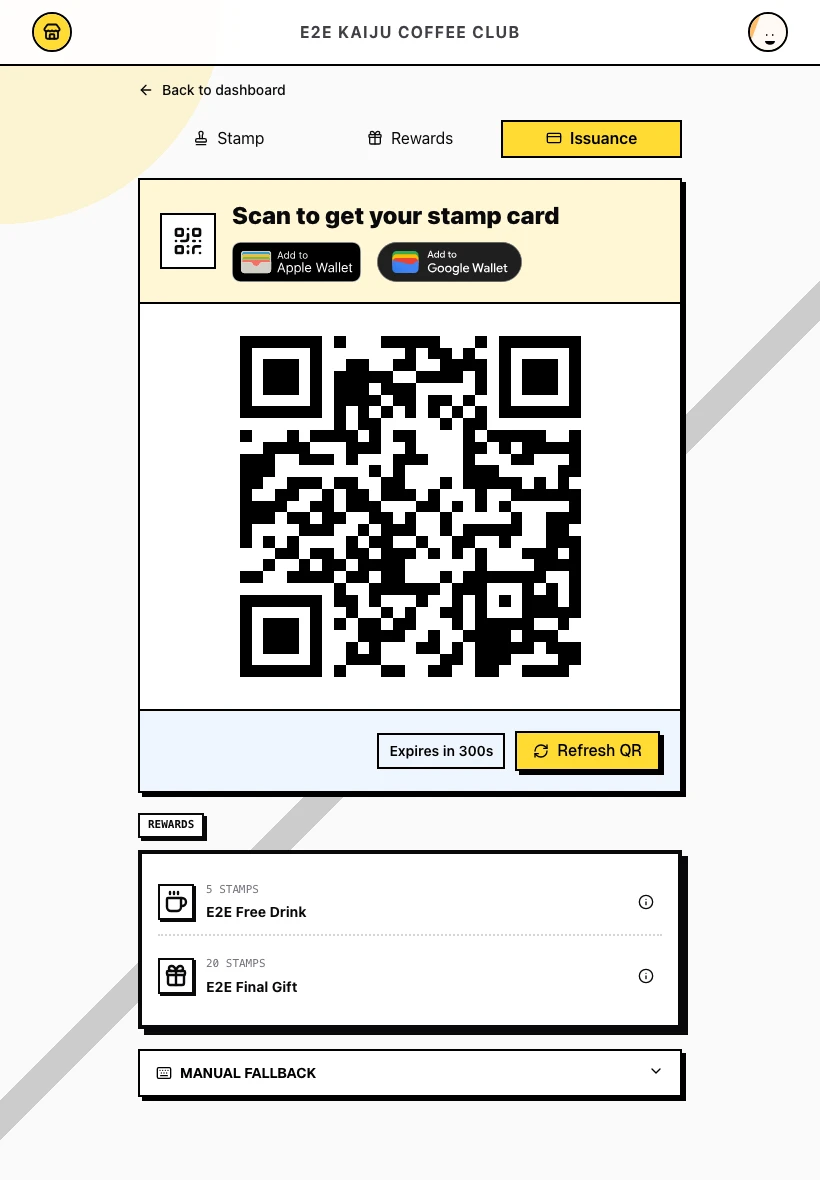
From the shop console, go to Issuance. A short-lived QR code is ready immediately — no need to click Generate QR first. The screen also shows your card branding and wallet action buttons.
2. Show the one-time QR to the customer
When the customer is at the counter, show the QR on your screen. Click Refresh QR before issuing the next customer's card.
3. Customer taps Add to Apple Wallet
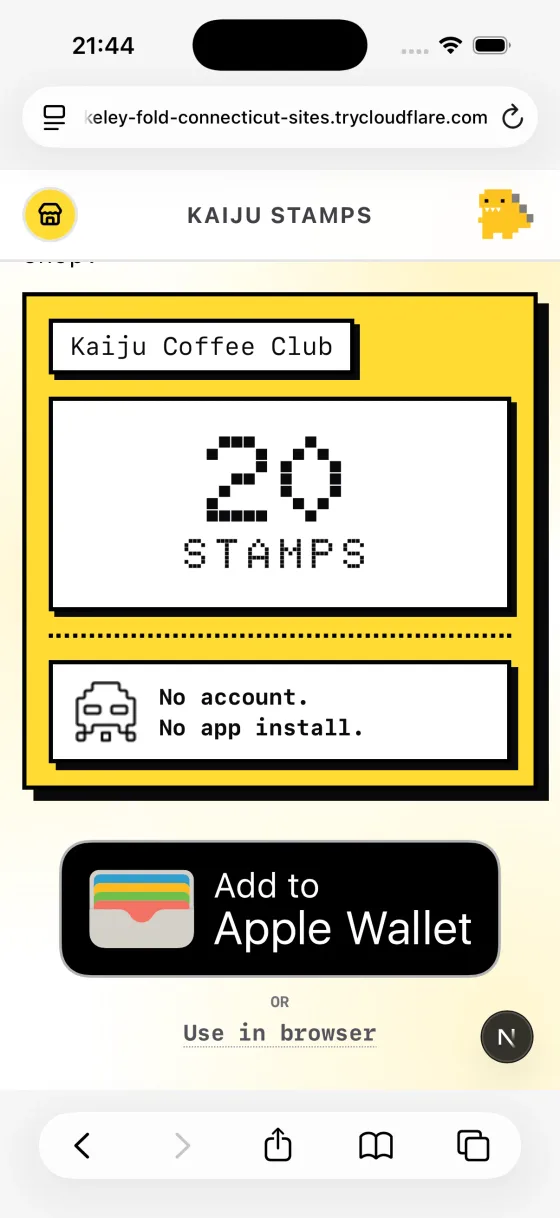
The customer opens the public issuance page on their phone. They see SAVE THIS CARD with Add to Apple Wallet, Add to Google Wallet, and a Use in browser link. For the standard journey, the customer taps Add to Apple Wallet.
4. Customer confirms in Apple Wallet
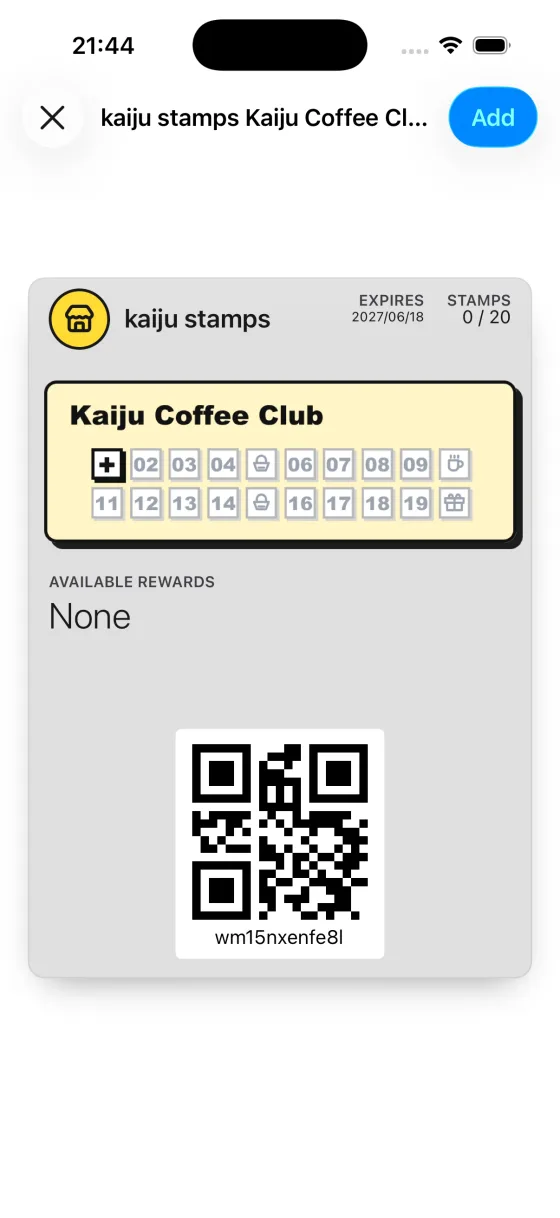
Apple Wallet opens a preview of the pass showing STAMPS 0 / 20 and the stamp grid. The customer taps Add to save the pass.
5. Customer views the pass in Wallet
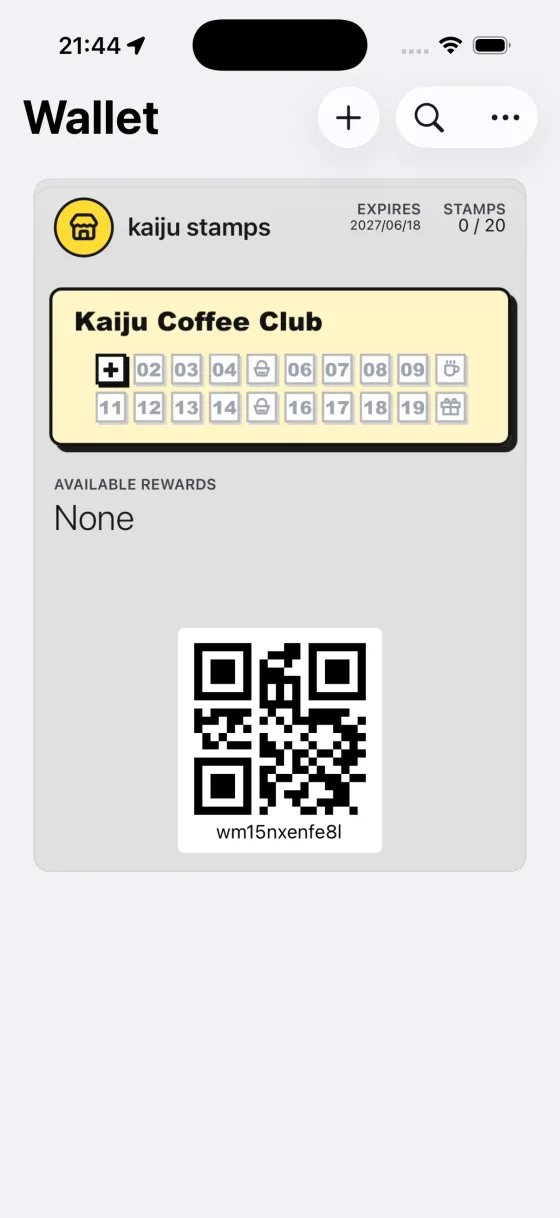
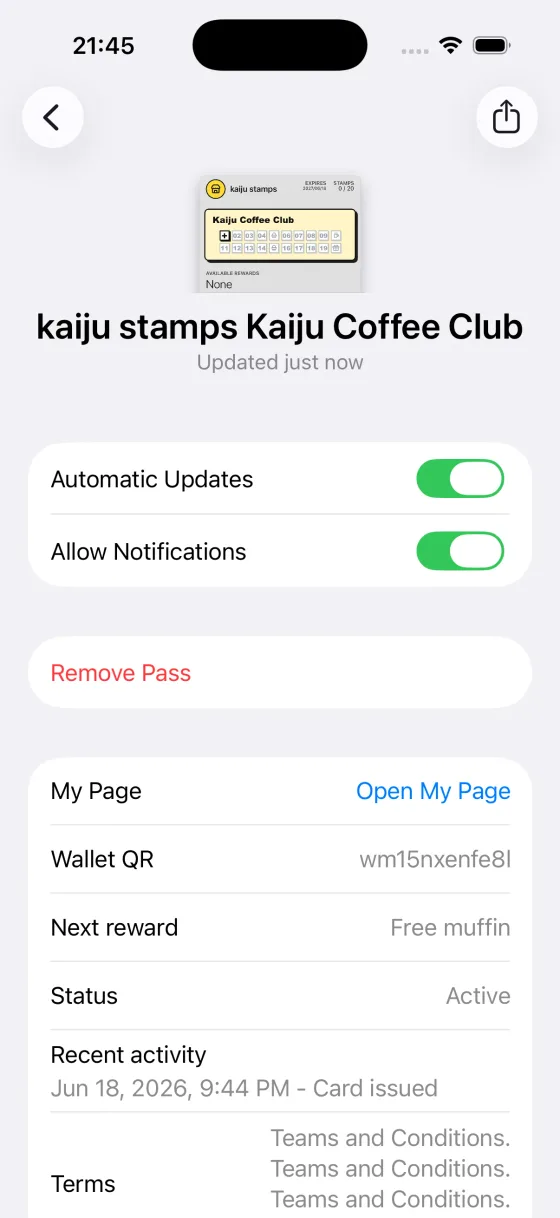
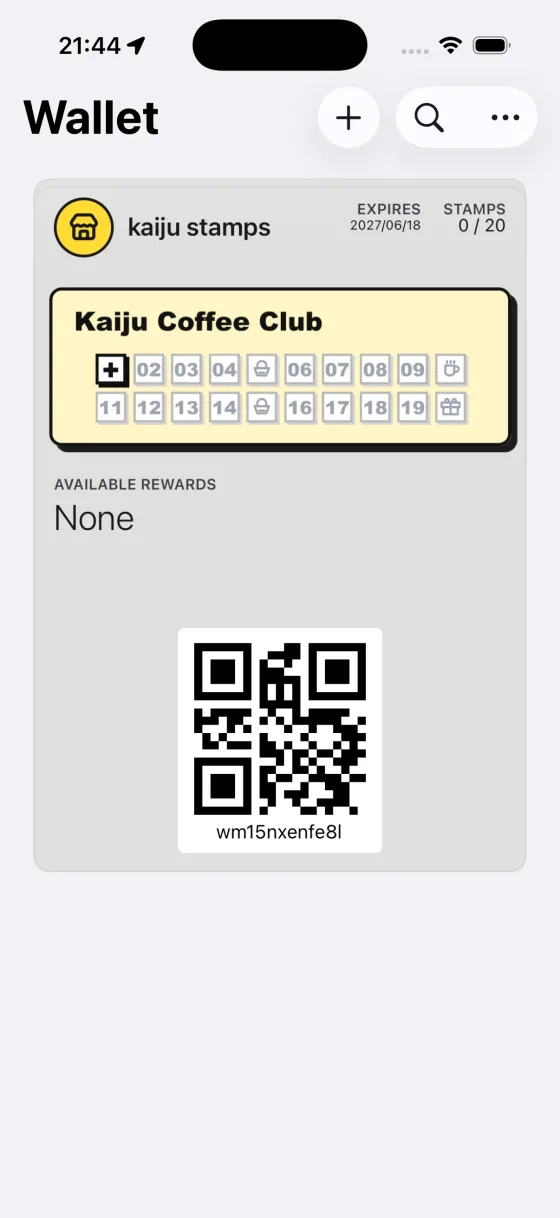
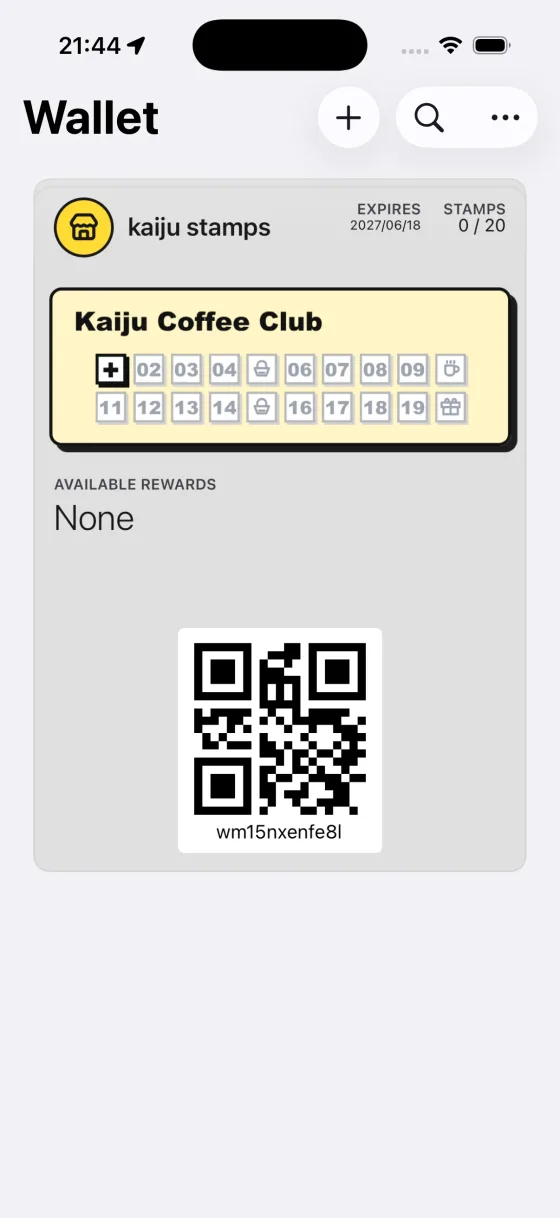
The pass appears in Apple Wallet with STAMPS 0 / 20, the stamp grid, and a Wallet QR code at the bottom. The customer can show this QR when visiting your shop.
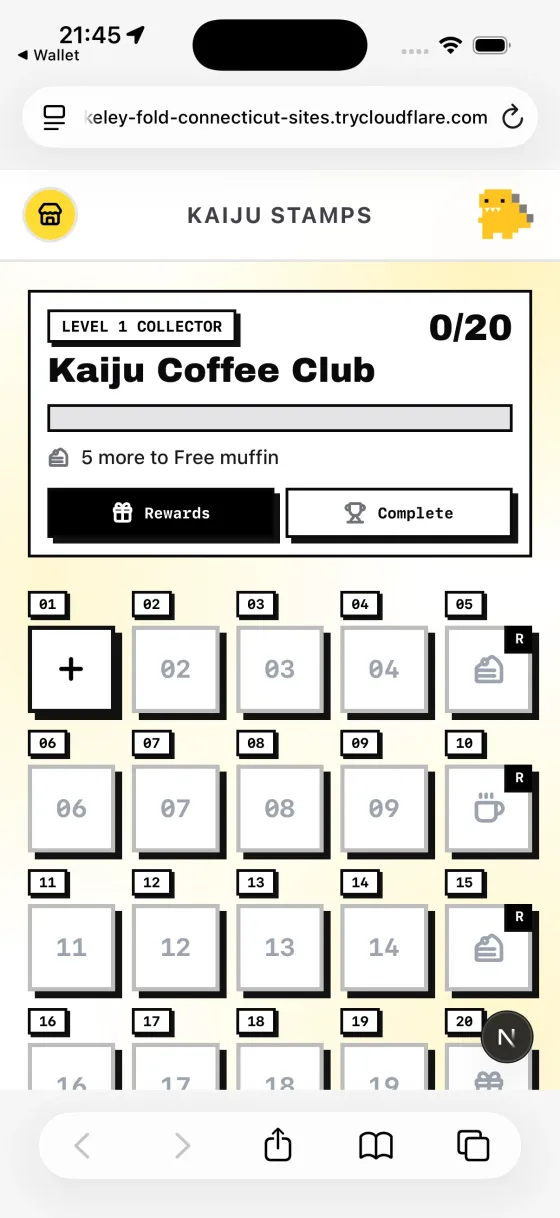
To see the full card My Page, the customer can open the pass back, tap Open My Page, and view progress in the browser.
6. Staff add stamps until a reward is earned
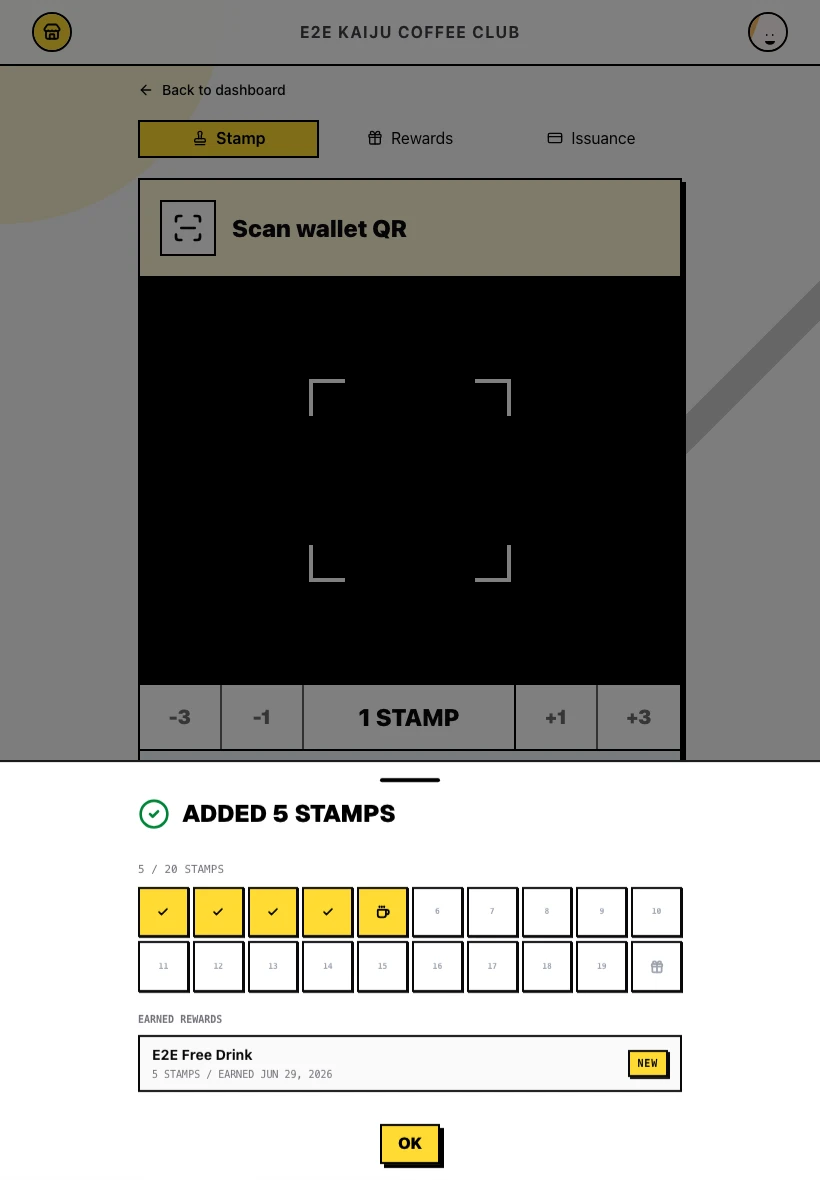
Switch to Stamp in the shop console. Scan the Wallet QR on the customer's pass, set the stamp amount first if needed, and confirm in the success drawer. When a reward threshold is reached, the drawer lists it under Earned rewards with a New badge.
7. Customer shows the Wallet QR for reward redemption
When a reward is earned, the customer opens their pass in Apple Wallet. They show the Wallet QR on the pass at the counter. Staff can also look up the reward from the same QR in the shop console.
8. Staff redeem the reward
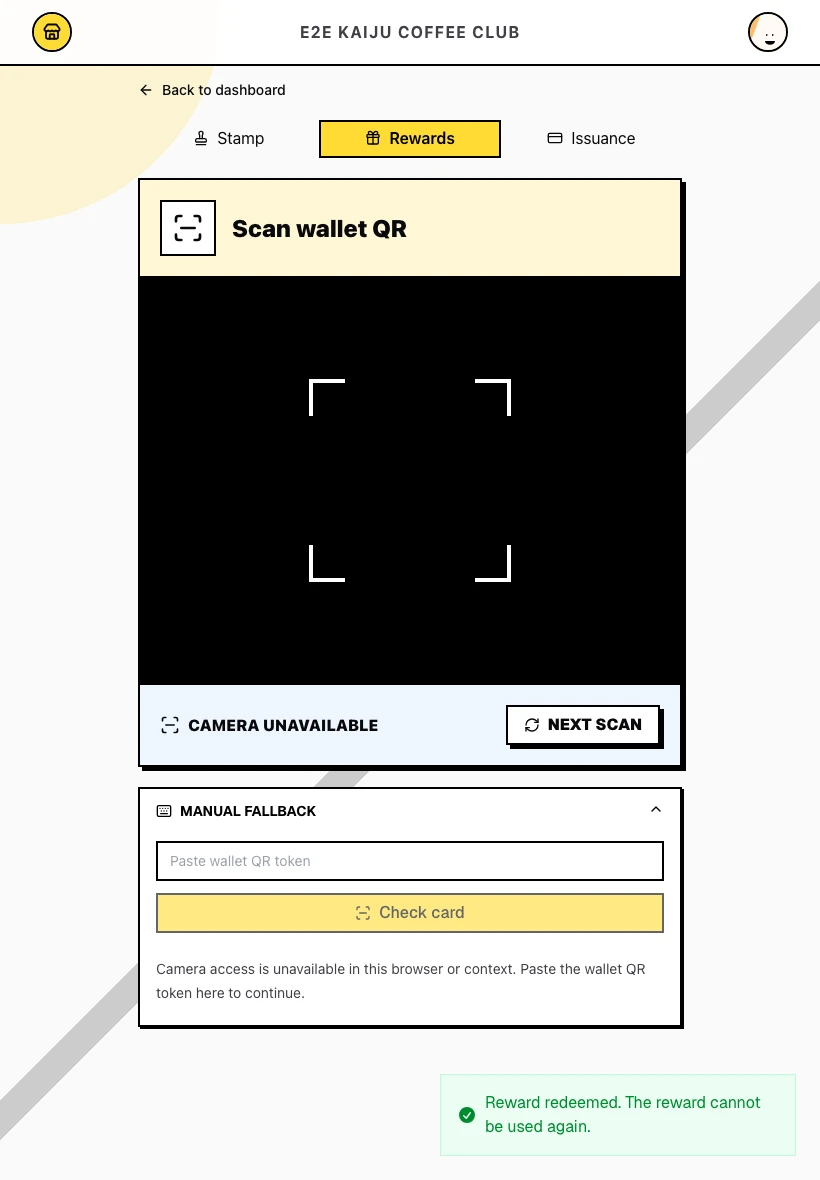
In the shop console, open Rewards. Scan the customer's wallet QR to open the rewards drawer, select the reward, and click Redeem selected reward. The reward is marked redeemed and cannot be used again.
9. Complete the card and roll over
Staff continue adding stamps until the final reward threshold is reached. The current card generation completes, and Apple Wallet updates the pass to a new active card generation at 0 / 20.
What success looks like
- A new customer received a pass in Apple Wallet without creating an account.
- Staff added stamps and redeemed an intermediate reward through normal shop operations.
- After the card was completed, the same wallet pass showed a fresh 0 / 20 stamp count.
Tips / Common issues
- Returning customers don't need a new QR. Ask them to open their existing wallet pass instead of generating another issuance QR.
- Each issuance QR is one-time. Generate a new QR for every new customer.
- Wallet passes update automatically. Stamp progress and rewards sync to Apple Wallet — customers don't need to reinstall the pass.
- Google Wallet works too. Android customers follow the same flow with Add to Google Wallet on the issuance page.
- Want more detail on issuance? See Card Issuance for the full merchant guide.