
Redeem Rewards
Show your wallet pass at the shop to redeem earned rewards — Apple Wallet and Google Wallet guides.
You did it — stamps collected, reward unlocked!
When you're ready to redeem, open your saved wallet pass and show the Wallet QR at the counter. Staff scan it, pick your reward, and you're done. No login, no extra app.
Who can use this
- Customers with at least one Earned and unused reward on their card
- iPhone users with Apple Wallet, or Android users with Google Wallet
Before you redeem
- Make sure you've earned a reward (your wallet pass may show available rewards on the back).
- Visit the shop in person — staff confirm redemption at the counter.
- Open your wallet pass before you reach the counter so the QR is ready.
Redeem with Apple Wallet
1. Open your pass in Wallet
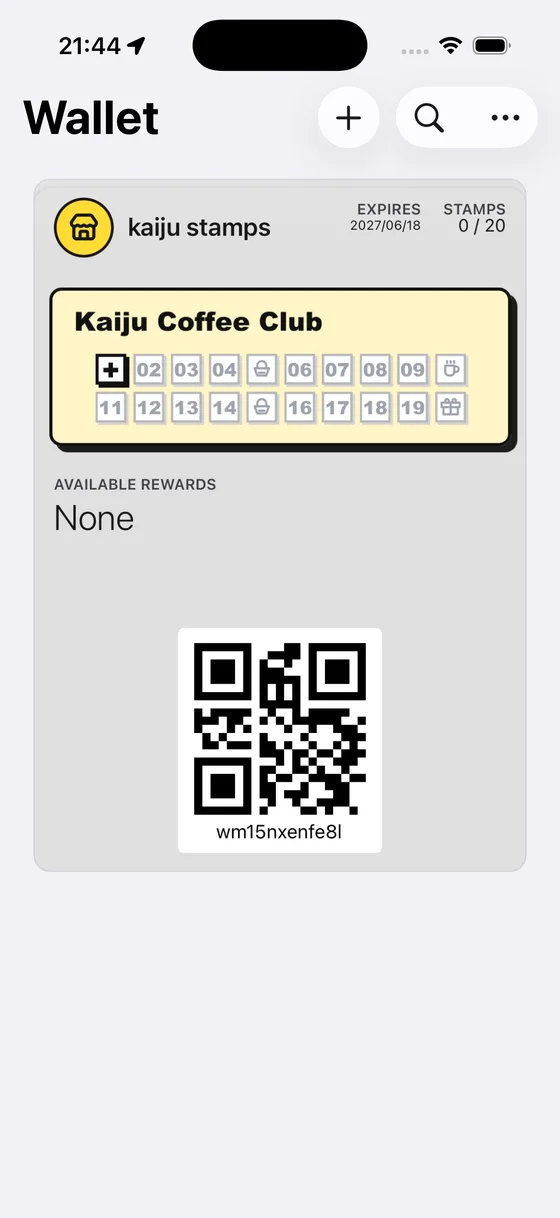
Open the Wallet app and tap your shop's stamp card. The front of the pass shows your stamp progress and the Wallet QR at the bottom.
2. Show the Wallet QR at the counter
Present the QR code on your pass to staff. They scan it in their shop console, see your available rewards, and confirm which one you're using.
That's it — one QR works for stamps and rewards. Staff select the correct reward on their side.
3. Check reward details on the pass back (optional)
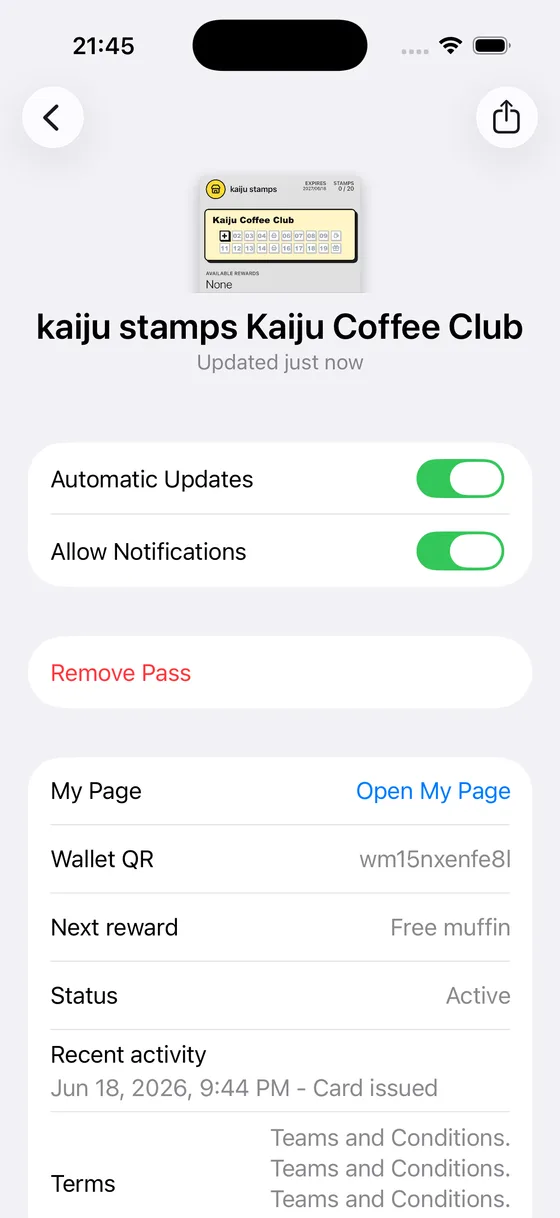
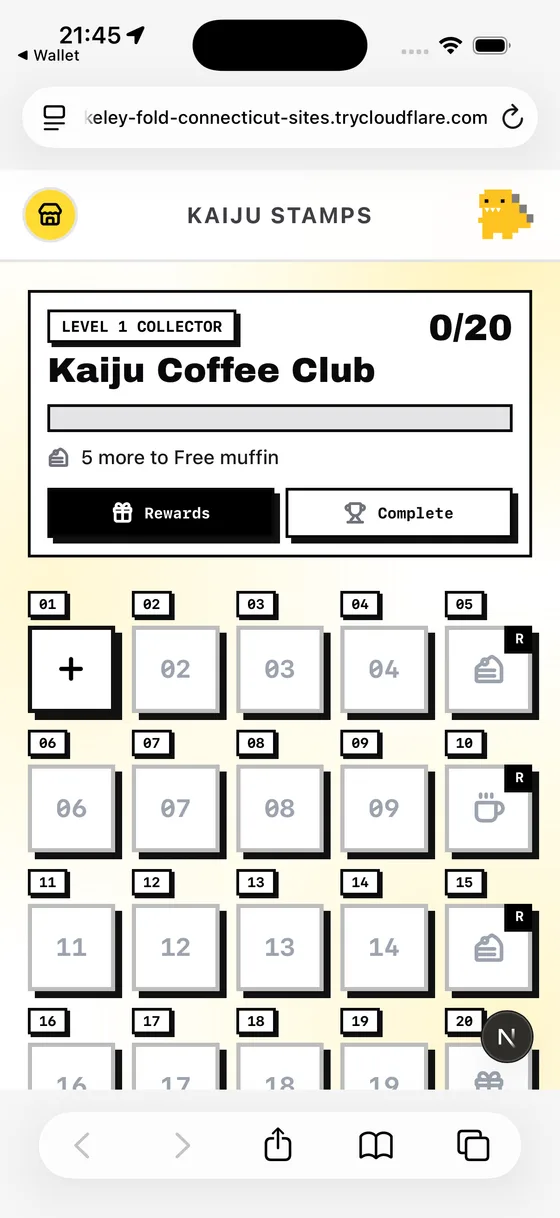
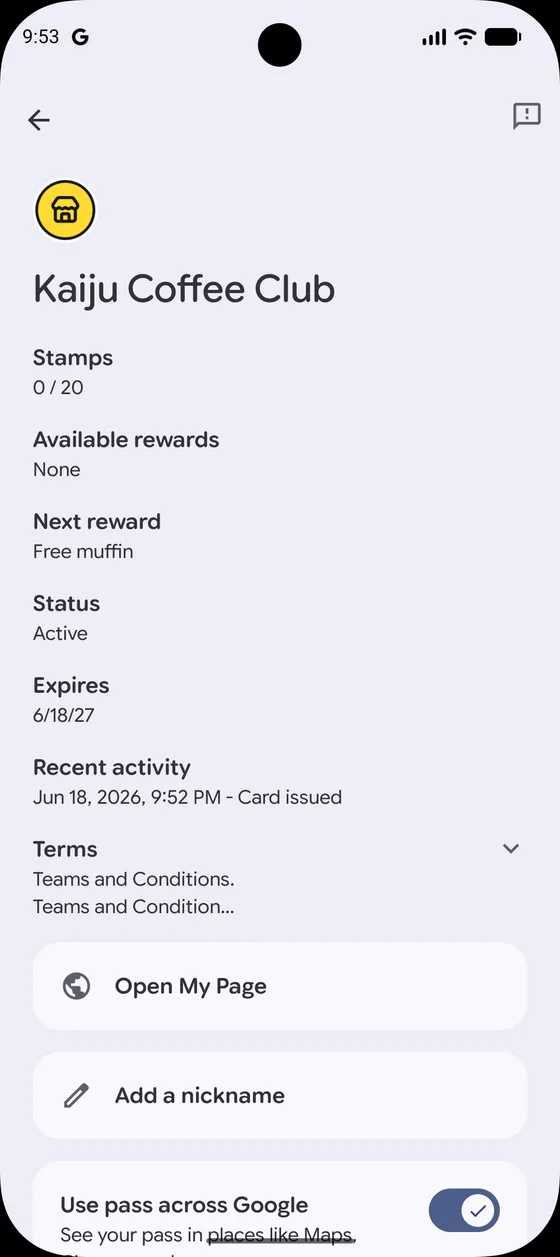
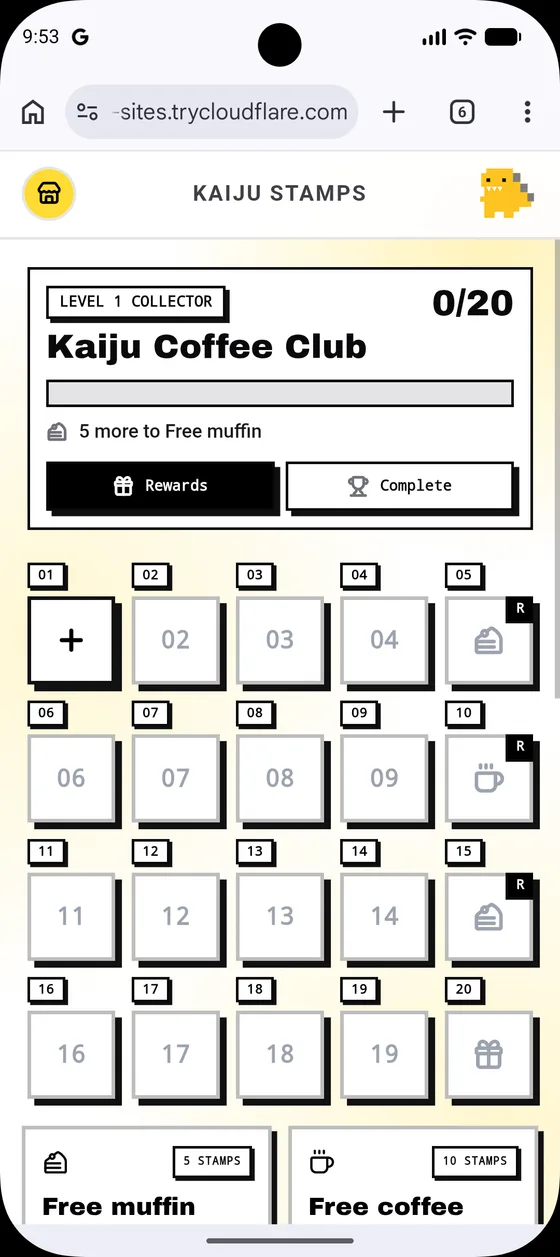
Need to double-check which rewards you've earned? Flip your pass to see Available rewards and tap Open My Page for the full Rewards tab.
Redeem with Google Wallet
1. Open your pass in Google Wallet
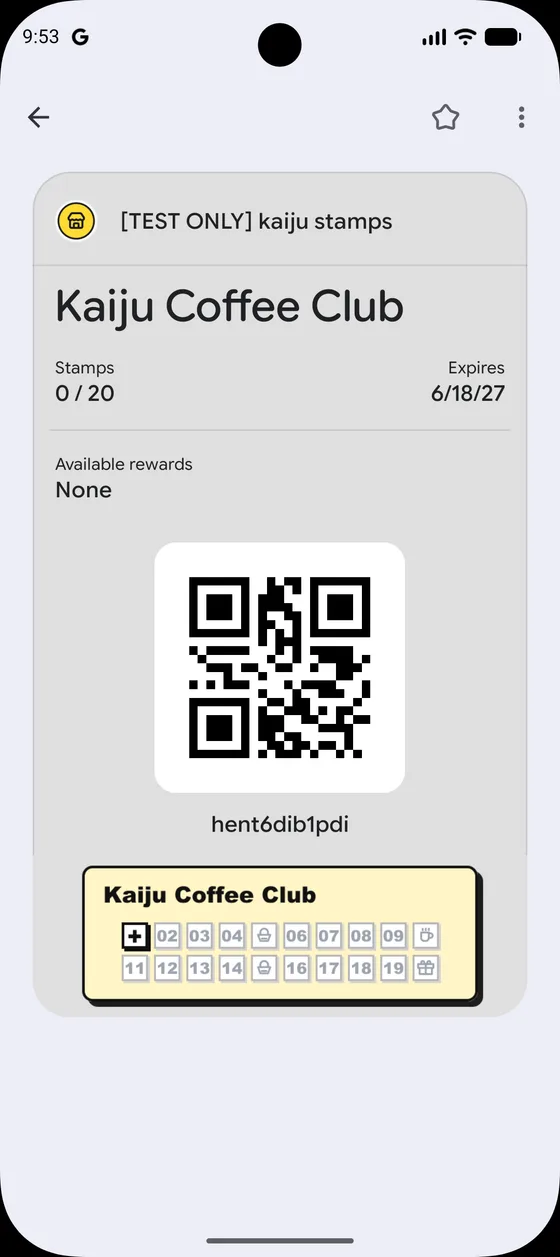
Open Google Wallet and tap your shop's stamp card. The pass front shows stamp progress and a scannable code for the shop.
2. Show the code at the counter
Hold up your phone so staff can scan the code on your pass. They'll see your available rewards and confirm your redemption.
3. Review rewards in pass details (optional)
Open pass details to see earned rewards listed under Available rewards. Tap Open My Page for the full reward list and descriptions.
What happens after redemption
- Intermediate reward — that reward moves to "used." Your stamp count stays the same and you keep collecting.
- Final reward — your card round completes. Your wallet pass rolls over to a fresh stamp count for the next round.
- Already redeemed? The same QR won't redeem the same reward twice — staff will see it's already been used.
Tips / Common issues
- Same QR for everything. The Wallet QR on your pass works for stamps and rewards. Staff choose the right action on their console.
- Multiple rewards earned? Show your pass once — staff see all available rewards and you pick which one to use.
- Pass not showing rewards yet? Wallet passes update after staff add stamps. Wait a moment and refresh, or check Open My Page for the latest state.
- No rewards yet? Keep collecting stamps! You'll see rewards appear on your pass back and My Page when you hit a milestone.
- New card? See Get Your Card if you haven't saved your pass yet.